
Organizing Video Assets at Scale
shootsta.
Organizing Video Assets at Scale
By Shootsta · Published January 14, 2026 · Updated October 2026
Enterprise video programs generate thousands of files. Without a system for organizing raw footage, finished edits, and brand assets, teams waste hours searching for the right clip. Here is how to fix that.
We see this pattern all the time. A team starts producing video regularly, and the first handful of videos are easy to manage. A year later, nobody can find anything because raw footage is mixed in with final cuts. Several people hold different versions of the same logo file, and a clip uploaded to the wrong project now lives in two places.
We have worked with enterprise teams producing hundreds of videos a year across offices in multiple countries. Asset management tends to get ignored until it starts costing real time. By then, untangling the mess takes longer than a sensible setup would have taken at the start.
This is what we have learned about keeping video assets organized when your library grows past the point where "I will just remember where I put it" stops working.
Why does video asset management break down?
A new video program usually starts with a flat file structure. Everything goes into one folder, maybe sorted by project name or date, and that works fine at low volume.
The problems start when multiple people are uploading assets, when you are reusing footage across projects, and when your library spans hundreds of files. At that point, a flat structure means scrolling through pages of thumbnails to find the clip you need. People stop looking and just re-film or re-upload instead.
The other common failure is the lack of naming conventions. "Final_v2_ACTUAL_FINAL.mp4" is a meme for a reason. Without agreed naming rules, your library becomes unsearchable within a few months.
What should a video asset management system look like?
You do not need a full-blown digital asset management platform to stay organized. You need three things: a folder structure that makes sense, consistent tagging, and clear ownership of who maintains it.
Folder structure
Organize by project, campaign, or content type - whichever matches how your team thinks about their work. A marketing team might use campaign folders. An L&D team might organize by training module. An internal comms team might sort by department or location.
The specific structure matters less than consistency. Pick one approach and stick with it. When a new person joins the team, they should be able to find what they need without asking someone.
Tagging and metadata
Folders give you one axis of organization. Tags give you the rest. Tag assets by type (raw footage, B-roll, final edit, graphic, logo), by topic, by office or region, and by status (in progress, approved, archived). If you are using Shootsta, see how media folders work in the platform.
Tags let you find assets across folders. When you need "all B-roll footage shot in the London office," a folder structure alone will not help, but a location tag will.
Ownership
Assign someone to maintain the library. This does not need to be a full-time role. But someone needs to be responsible for enforcing naming conventions, cleaning up duplicates, and archiving old assets. Without an owner, every system degrades within a few months.
How do you handle raw footage vs. finished videos?
Raw footage and finished edits serve different purposes and should live in different places.
Raw footage is a source material. It might be reused across multiple projects, but most of it will never be watched again. Keep it accessible but separate from your working library, and treat it as your archive.
Finished videos are your active library. These are the assets people search for and share. They should be easy to find, clearly labeled, and tagged with the metadata that makes them useful: topic, date, participants, format, duration.
The mistake teams make is mixing these together. When raw GoPro files sit next to polished brand videos, the library becomes cluttered and hard to navigate. Separate the two and your day-to-day experience improves immediately.
What about brand assets and templates?
Your editors and producers reach for the same assets on every project: logos, fonts, brand colors, intro/outro templates, lower thirds and music tracks. These files need a dedicated home.
Create a brand assets folder (or tag) that contains the latest, approved versions of everything. When someone updates the logo, the new version goes here and the old one gets archived. That way nobody has to guess which version is current.
This is especially relevant for teams using Shootsta's platform, where brand consistency across dozens of videos depends on editors having access to the right assets. The faster they can find the correct logo, template, or graphic, the faster your video ships.
How do you manage assets across global teams?
When your video program spans multiple offices and time zones, asset management gets more complex. Say the Sydney office films an event and the London team needs that footage for a global recap video. Meanwhile the Singapore team wants the same B-roll for a regional version.
Cloud-based media libraries solve the access problem. Everyone can see and use the same assets regardless of location. But you still need rules about who uploads what and where it goes.
One practical approach is to have each office own its local folder and take responsibility for uploading and tagging its assets. Shared assets (brand files, global campaigns) live in a common area that everyone can access but only the brand team can modify. This prevents the "too many cooks" problem without restricting access.
For companies scaling video across regions, see how video production scales with the right infrastructure behind it.
What naming conventions work?
Keep it simple. A good file naming convention has three parts: what the asset is, when it was created, and what version it is.
Example: brand-overview-video-2026-01-v2.mp4
Use hyphens instead of spaces in file names, and leave out special characters. Put the date in YYYY-MM format so files sort chronologically. Use "v1, v2, v3" for versions, never "final" or "latest" (because there is always another one).
Write the convention down, share it in your team's documentation and point to it when you onboard new team members. A naming convention only works if everyone follows it.
When should you archive old assets?
Not every video needs to stay in your active library forever. Set a clear archiving policy: videos older than 12 months that are not actively being reused get moved to an archive. Raw footage from completed projects gets archived after the final edit is approved.
Archiving a file is different from deleting it, because the file still exists and can be retrieved if needed. But they stop cluttering the spaces where your team does daily work. A lean, current library is easier to search than one stuffed with three years of accumulated files.
Review your library quarterly. If a quarterly review feels like too much, do it twice a year. The point is having a regular rhythm rather than waiting until the mess gets unbearable.
Frequently asked questions
Do I need a dedicated DAM tool?
If you produce a modest number of videos a year, the media library in your video production platform is usually enough. Dedicated DAM tools (Bynder, Brandfolder, Canto) make sense when your asset library spans thousands of files across multiple content types, such as video alongside photography, documents and design files. Start with what you have and upgrade when you outgrow it.
How do I get my team to follow the system?
Make it easier to follow the system than to ignore it. If uploading to the right folder takes five clicks but dumping everything in one place takes one, people will dump everything. The system needs to be as frictionless as possible. Tag suggestions, default folders, and automated organization all help.
Should I organize by date or by project?
You should almost always organize by project. Date-based organization makes it hard to find assets related to a specific campaign or topic. If you need to find "all videos from Q3," tags or metadata filters handle that without forcing a date-based folder structure on your whole library.
How do I handle assets shared across departments?
Create a shared library with clear tagging. Each department tags their contributions so other teams can find relevant content. Set permissions so anyone can view shared assets but only the owning team can modify or delete them. This prevents accidental overwrites while keeping everything discoverable.
What about video captions and subtitle files?
Store caption files (SRT, VTT) alongside their corresponding video. If you manage captions at scale, having them paired with the right video file saves time during updates and re-exports. Tag caption files with the language so multilingual teams can find the right version quickly.
File naming and delivery specs are part of a wider pre-delivery check, covered in the complete guide to video editing QA.
Take this article with you
Read the latest at shootsta.com/blog/keeping-video-assets-organized-at-scale
You might also like
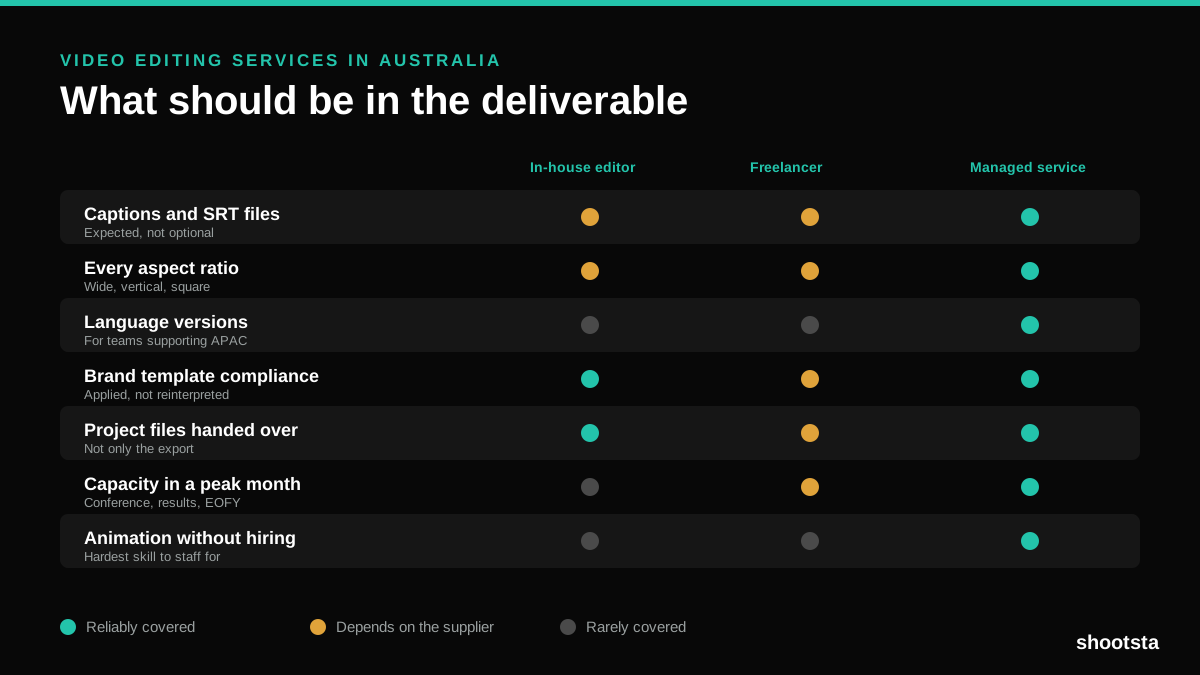
Video Editing Services in Australia
Australian teams are spread across time zones and offices, so the editing queue matters more than the editing. Here is what to expect on cost and turnaround.
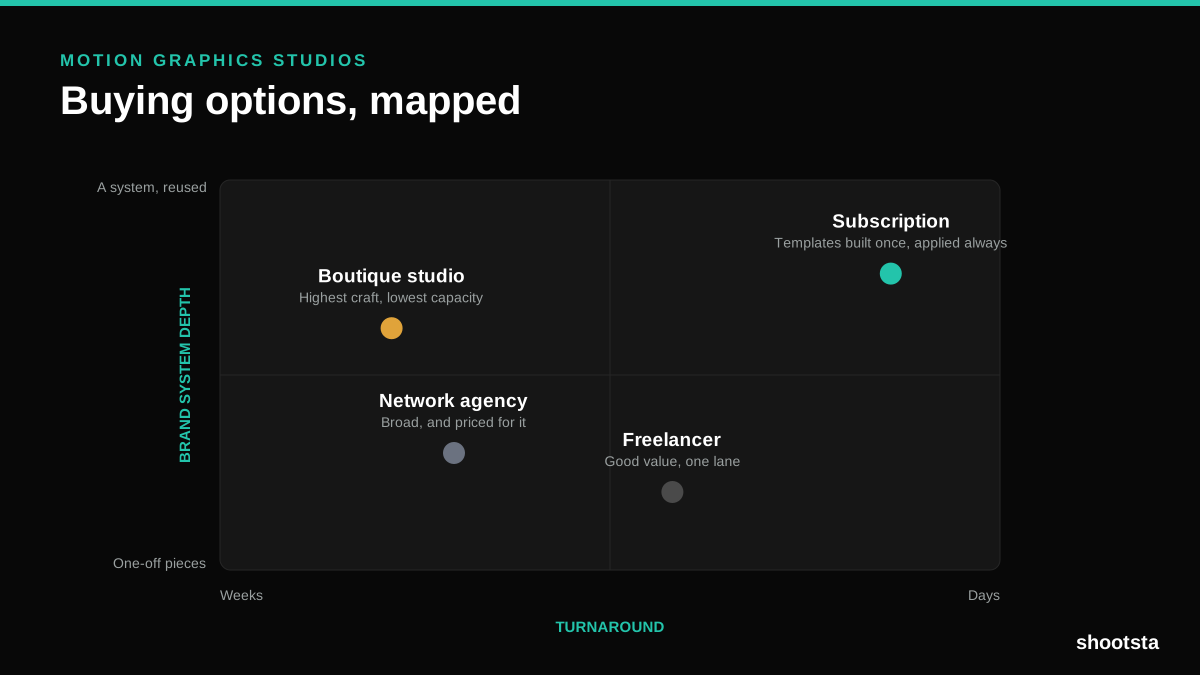
How to Choose Between Motion Graphics Studios
Every motion graphics studio has a good reel. The reel is the one thing that will not tell you how the fifth project goes. These ten criteria will.
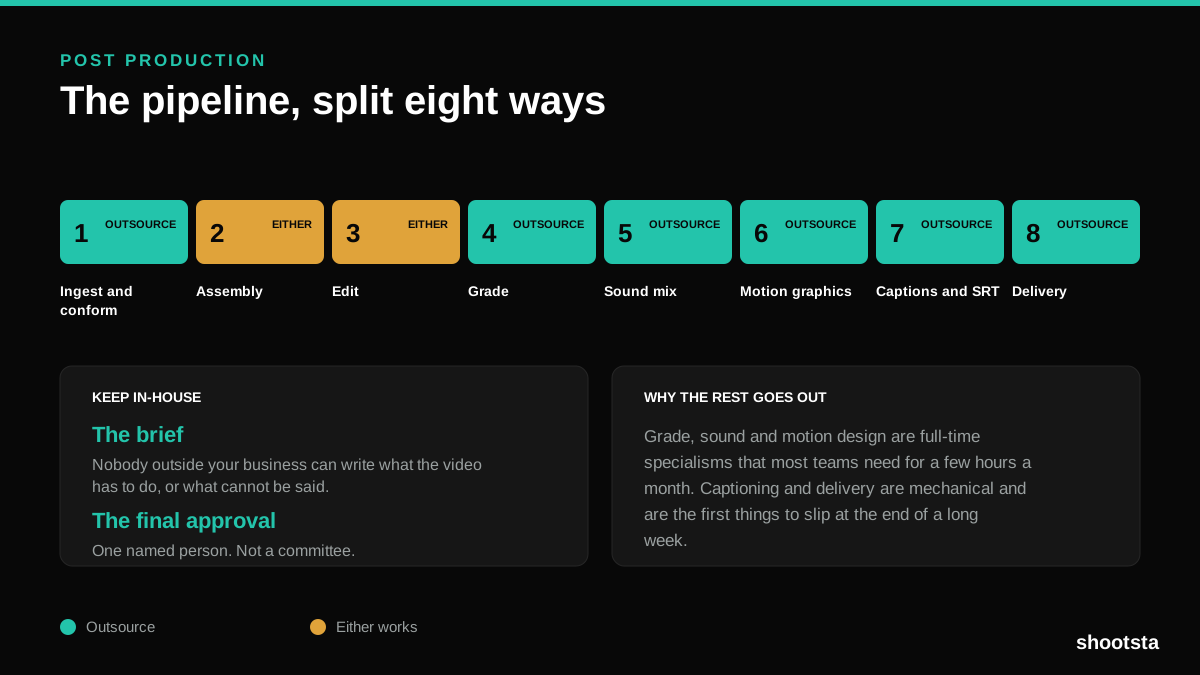
Post Production Agency or In-House Team?
Post production is eight stages, not one. Some of them need context only your team has. The rest are mechanical and are the first things worth handing over.
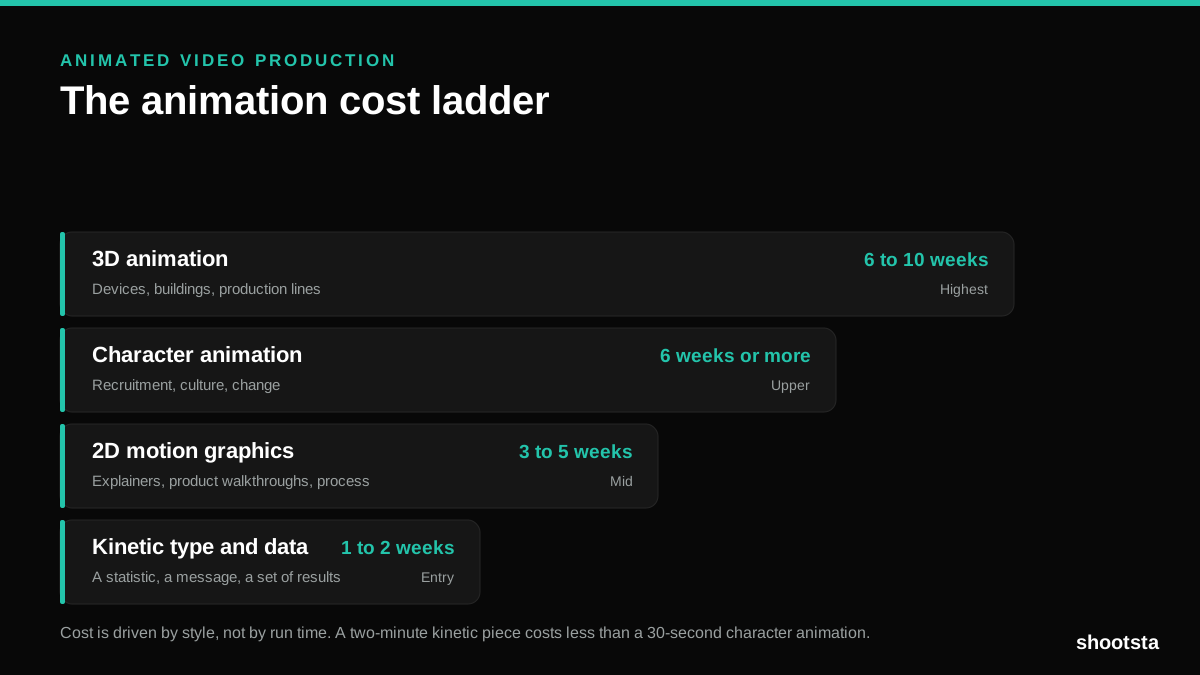
Animated Video Production Cost in the US
Animated video production costs move with style, not with length. Kinetic type, 2D motion, character and 3D sit on four rungs of a ladder. Here is what separates them.
How to Commission Medical Training Animation
Commissioning a medical training animation is mostly decisions you make before anyone animates a frame. The brief fields that matter, what to ask a studio, how much expert time to budget, and the contract terms that stop a rebuild in two years.
How to Write an Animation Brief
How to Write an Animation Brief
Most animation briefs cause delays because they over-specify the visual style and under-specify the outcome. Here are the nine fields an animation production team needs to quote accurately and start without rework.