
shootsta.
Filming Business Video on an iPad
By Shootsta · Published May 2, 2026 · Updated October 2026
Tips and tricks for filming business video on an iPad. When the iPad is the right tool, the rig you need, and the mistakes to avoid.
Why use an iPad to shoot business video?
An iPad isn't the obvious choice for filming, and that's fine. We'd shoot most business video on a phone or a kit camera. Still, the iPad wins in a few cases: piece-to-camera with on-screen prompts, walk-and-talk product demos, and remote interviews where the subject also needs to see slides. In each of those, the bigger screen earns its place.
When is an iPad the right tool?
These are the three scenarios where an iPad beats a phone:
- Autocue is part of the shoot. A phone-sized teleprompter forces the talent to read a tiny script. An iPad gives readable text without the talent's eyes drifting away from the lens.
- The talent presents off a deck or whiteboard app. Filming in apps like Keynote, Procreate, or a screen-share tool is far easier on a 12-inch screen than a phone.
- The shoot is hybrid (filming and reviewing). Reviewing playback on the spot is faster on an iPad than huddling over a phone.
For everything else (vox pops, on-the-go interviews, social cuts), a phone is faster and steadier. The team's guide on filming corporate video on your phone covers that side.
What setup do you need?
Mounting and stabilization
An iPad on a tripod needs a dedicated tablet mount, because a phone clamp can't hold it. The weight makes cheap clamps droop mid-take, and a drooping iPad is a wasted shoot. A tripod with a fluid head matters more for an iPad than for a phone because the device is harder to keep level by hand.
Audio
The built-in iPad microphone is the weakest part of the setup. For anything customer-facing, plug in a lavalier mic via USB-C, or run a small wireless mic system into the iPad. The audio bar for business video is "clear and free of room echo," and the iPad's onboard mics struggle with both.
Lighting
iPads have larger sensors than phones but the dynamic range is still limited. Soft, frontal lighting (a window or a small LED panel) makes a bigger difference than any in-camera setting. Avoid mixing daylight and warm indoor lighting in the same shot.
Lens choice
Stick with the rear camera. The front-facing camera is convenient but produces softer, lower-contrast footage. The rear camera also has the better wide angle, which matters more on an iPad because the device sits further from the subject than a phone usually does.
How do you frame an iPad shot?
Hold or mount the iPad in landscape (16:9) for anything heading to YouTube, web players, or internal comms. For Reels, TikTok, or LinkedIn vertical, mount in portrait. Don't try to crop a landscape iPad shot to vertical (the image is too soft once cropped). Decide the orientation before you shoot, and pick the aspect ratio per platform using our aspect ratio guide.
For pieces to camera, position the iPad at the talent's eye line and have them look at the lens rather than at their own image on the screen. The lens sits at the top of the device in landscape orientation, which means the talent has to consciously look slightly above the autocue text. A few takes of practice fixes this.
Common iPad filming mistakes
- Filming with the screen facing the talent. The bright screen reflects in the talent's eyes and looks unprofessional.
- Forgetting airplane mode. Notifications during a take ruin the audio and the focus pull.
- Shooting in 4K because it's there. 1080p is plenty for business video and saves storage and editing time.
- Ignoring battery drain. Recording video at high resolution drains an iPad faster than expected. Keep it plugged in for shoots over 30 minutes.
FAQs about filming on an iPad
Is an iPad good for filming professional video?
For business video at internal-comms or social-channel quality, yes. For anything that needs cinematic depth of field, low-light performance, or interchangeable lenses, no. The iPad is a fast, capable tool for the middle of that range.
What apps should I use for filming on an iPad?
The native Camera app is fine for most shoots. For more control over exposure, focus, and frame rate, apps like Blackmagic Camera or FiLMiC Pro work well. For autocue, several teleprompter apps run alongside the Camera app in split view.
Can I edit on the iPad too?
Yes. iMovie, LumaFusion, and the iPad version of DaVinci Resolve all handle business video editing. For team workflows where the same footage gets cut multiple ways, finishing in Shootsta's edit platform is faster than a single-device workflow.
Take this article with you
Read the latest at shootsta.com/blog/filming-business-video-on-ipad
You might also like
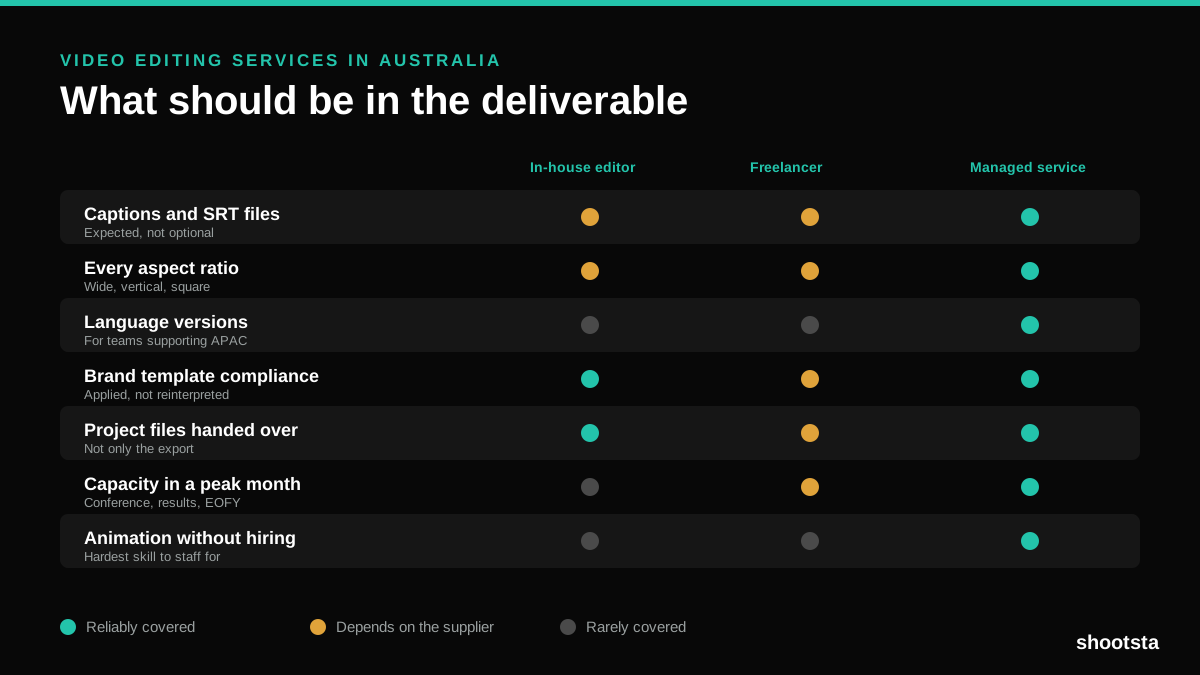
Video Editing Services in Australia
Australian teams are spread across time zones and offices, so the editing queue matters more than the editing. Here is what to expect on cost and turnaround.
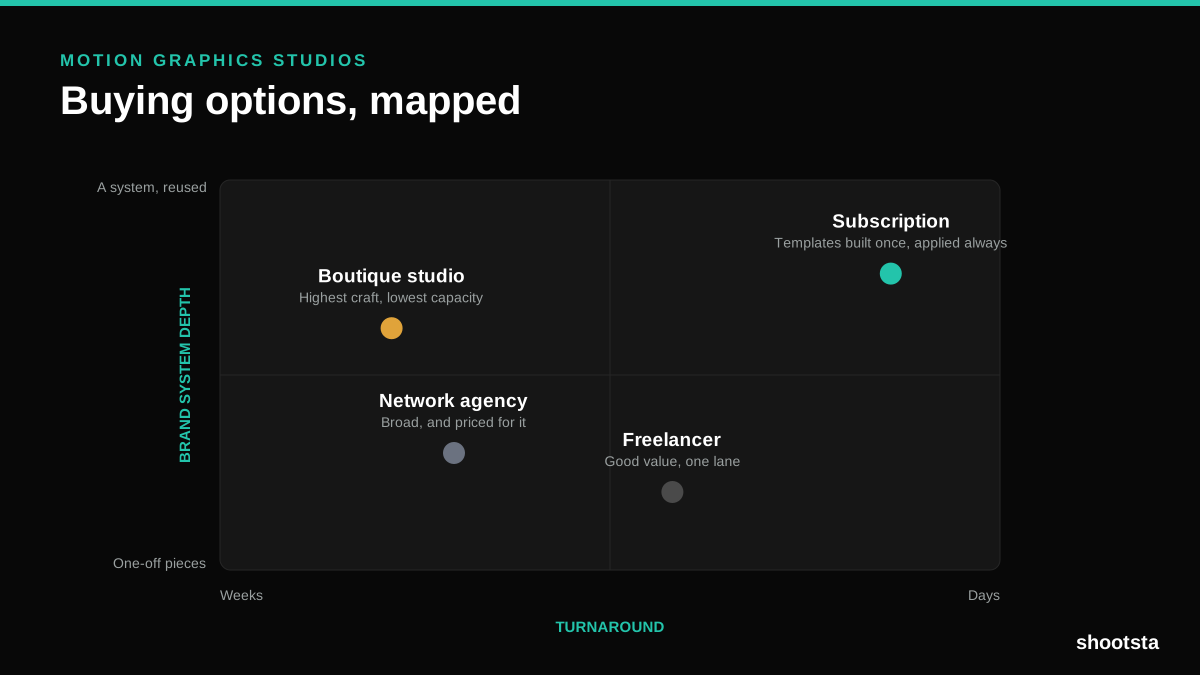
How to Choose Between Motion Graphics Studios
Every motion graphics studio has a good reel. The reel is the one thing that will not tell you how the fifth project goes. These ten criteria will.
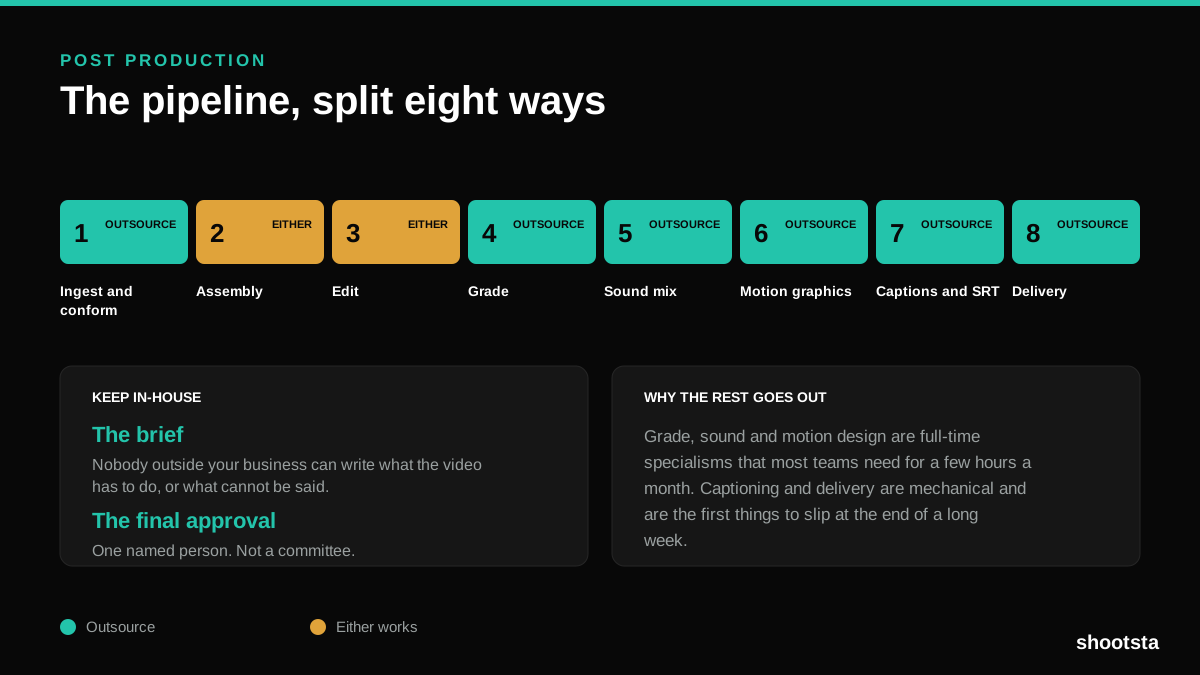
Post Production Agency or In-House Team?
Post production is eight stages, not one. Some of them need context only your team has. The rest are mechanical and are the first things worth handing over.
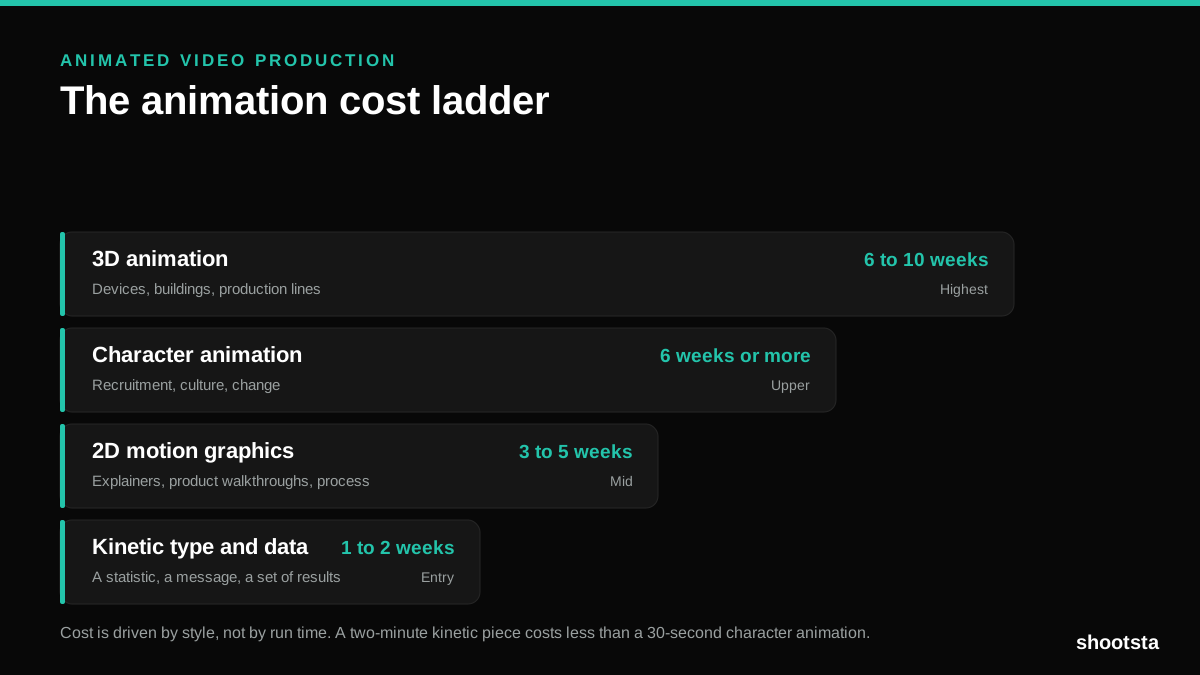
Animated Video Production Cost in the US
Animated video production costs move with style, not with length. Kinetic type, 2D motion, character and 3D sit on four rungs of a ladder. Here is what separates them.
How to Commission Medical Training Animation
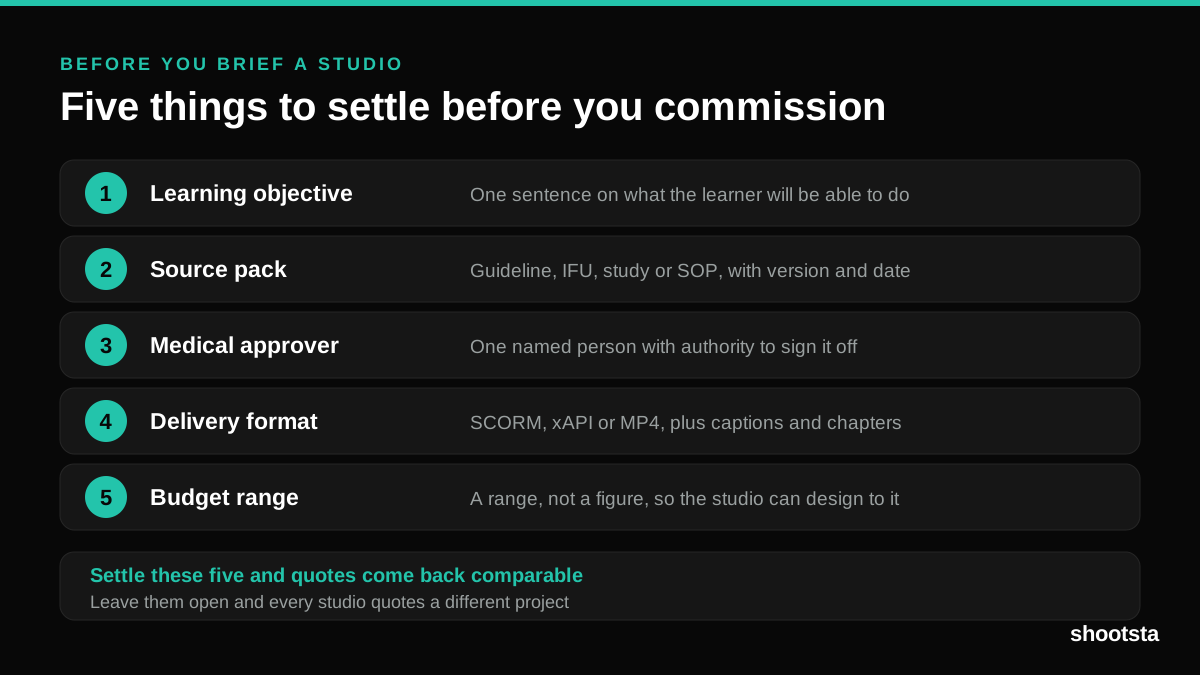
Commissioning a medical training animation is mostly decisions you make before anyone animates a frame. The brief fields that matter, what to ask a studio, how much expert time to budget, and the contract terms that stop a rebuild in two years.
How to Write an Animation Brief
How to Write an Animation Brief
Most animation briefs cause delays because they over-specify the visual style and under-specify the outcome. Here are the nine fields an animation production team needs to quote accurately and start without rework.