
Less Admin, More Video: 15 Shootsta Updates
shootsta.
Less Admin, More Video: 15 Shootsta Updates
By Shootsta · Published September 1, 2026 · Updated October 2026
Fifteen platform updates from June to August 2026, covering video review, your media library, uploads and captions. Here is what changed and why it helps.
Over the past few months we have tuned the platform around your feedback. These Shootsta updates all point at everyday work: leaving notes on a video, keeping your media tidy, and knowing that uploads, downloads and captions will behave.
None of this is headline stuff, but these are the small steps that decide whether a video ships today or next week. The Shootsta updates below all landed between June and August.
A fresher homepage
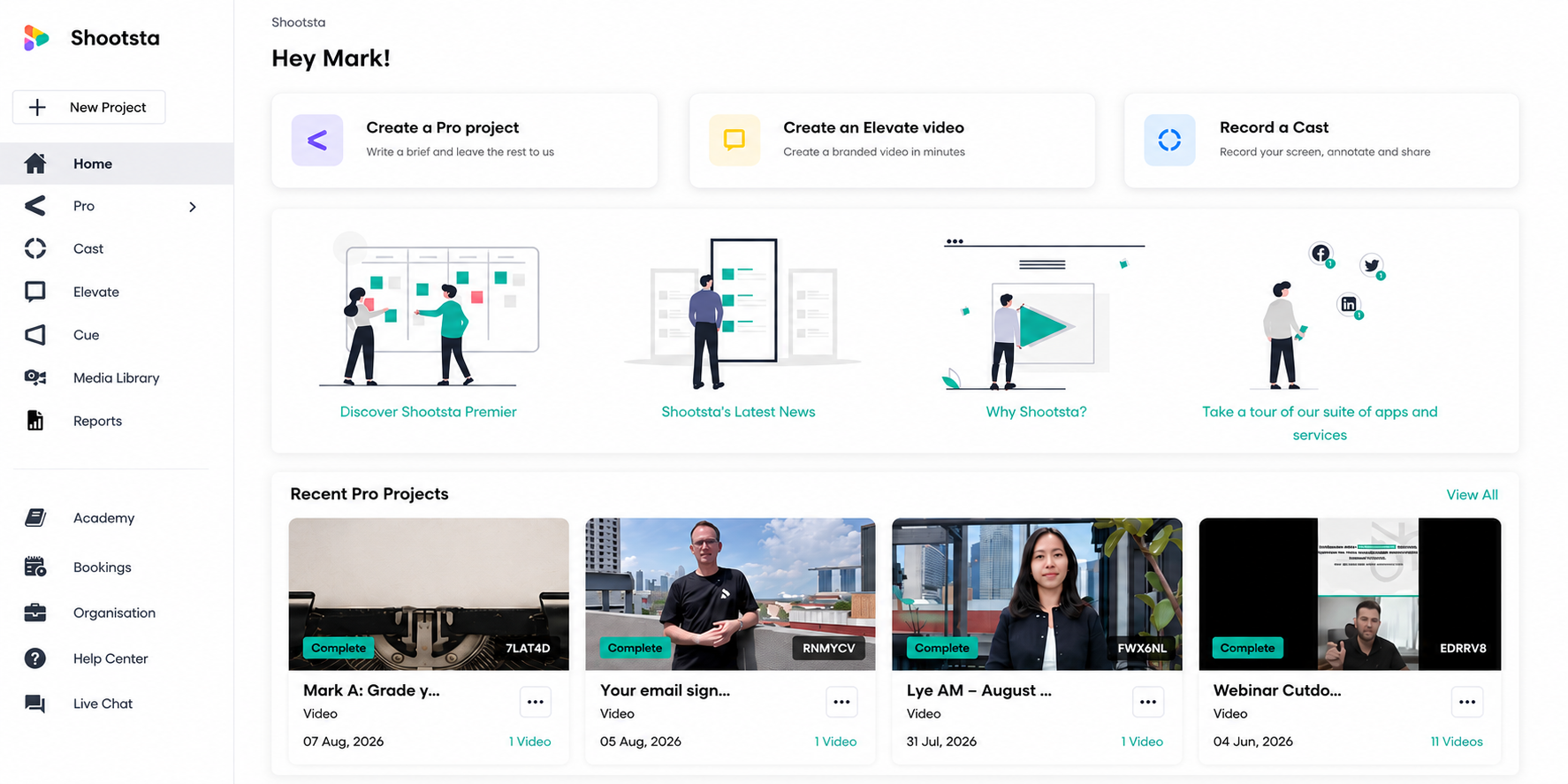
Quick action cards now sit at the top of the Shootsta homepage, so you can start a Pro project, make an Elevate video or record a Cast in a single click.
Below them, the carousels show real video thumbnails instead of plain tiles, which means you spot a project by its first frame rather than by reading down a list of titles.
Reviewing and approving videos
Review is where most video projects lose time, and six of these updates sit in that part of the workflow.
Draw on the video to leave feedback
Drag a box over any part of the frame on the review page and your comment pins to that exact spot. The note carries the timecode with it, so it marks both where you mean and when you mean it.
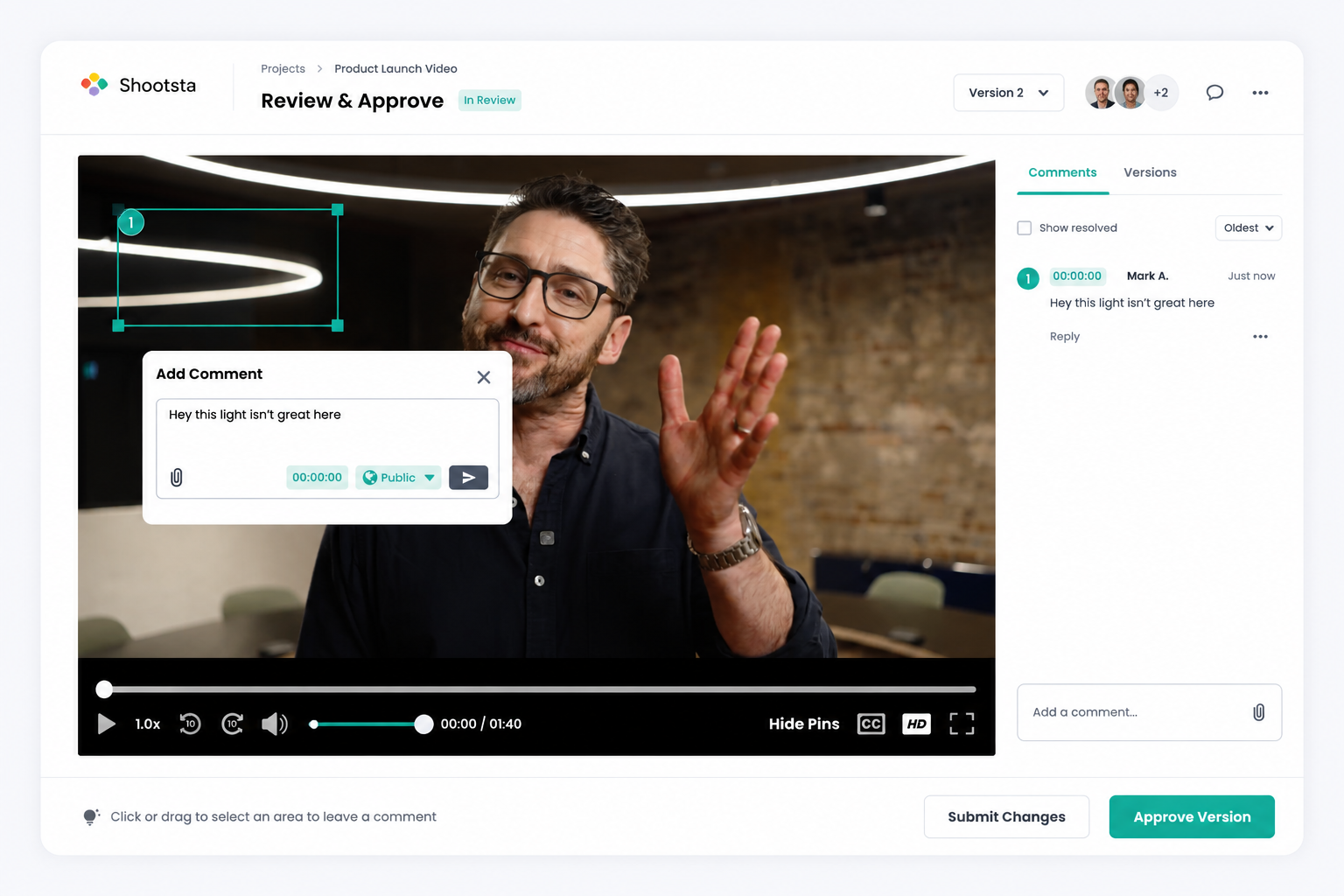
The real gain is that you no longer need production vocabulary to give a usable note. You do not have to know whether the problem is the practical in the background or the key light on the subject. You draw a box around it and say it does not look right.
Editors get a clear instruction instead of a description they have to decode, which saves a round of back and forth on most notes. It also holds up when several people review the same cut, because each box is numbered and sits with its own comment.
Comments follow the video
Review comments are now numbered by where they land in the video, not by when someone typed them, so reading the feedback list matches watching the edit.
If four people review the same cut over two days, the notes still read top to bottom in timecode order.
Switching versions keeps your place
Jump between video versions during review and the player stays on the same moment, so you can compare two edits of the same scene without scrubbing back each time.
A safety net on storyboard approvals
Approving a storyboard while you still have unsent draft comments now shows a warning first, so your feedback does not quietly vanish at the moment you sign off.
Request changes without starting over
Asking for changes on a delivered video now runs through the review flow wherever possible. A reopened project keeps your original brief, so you are not retyping context the editor already has.
Reopening a project also no longer uses a credit at the point you reopen it.
Download all comment attachments at once
Reviewers attach things to their notes. A corrected logo, a reference clip, a screenshot of the section that looks wrong. One click on the review page now zips the lot into a single download.
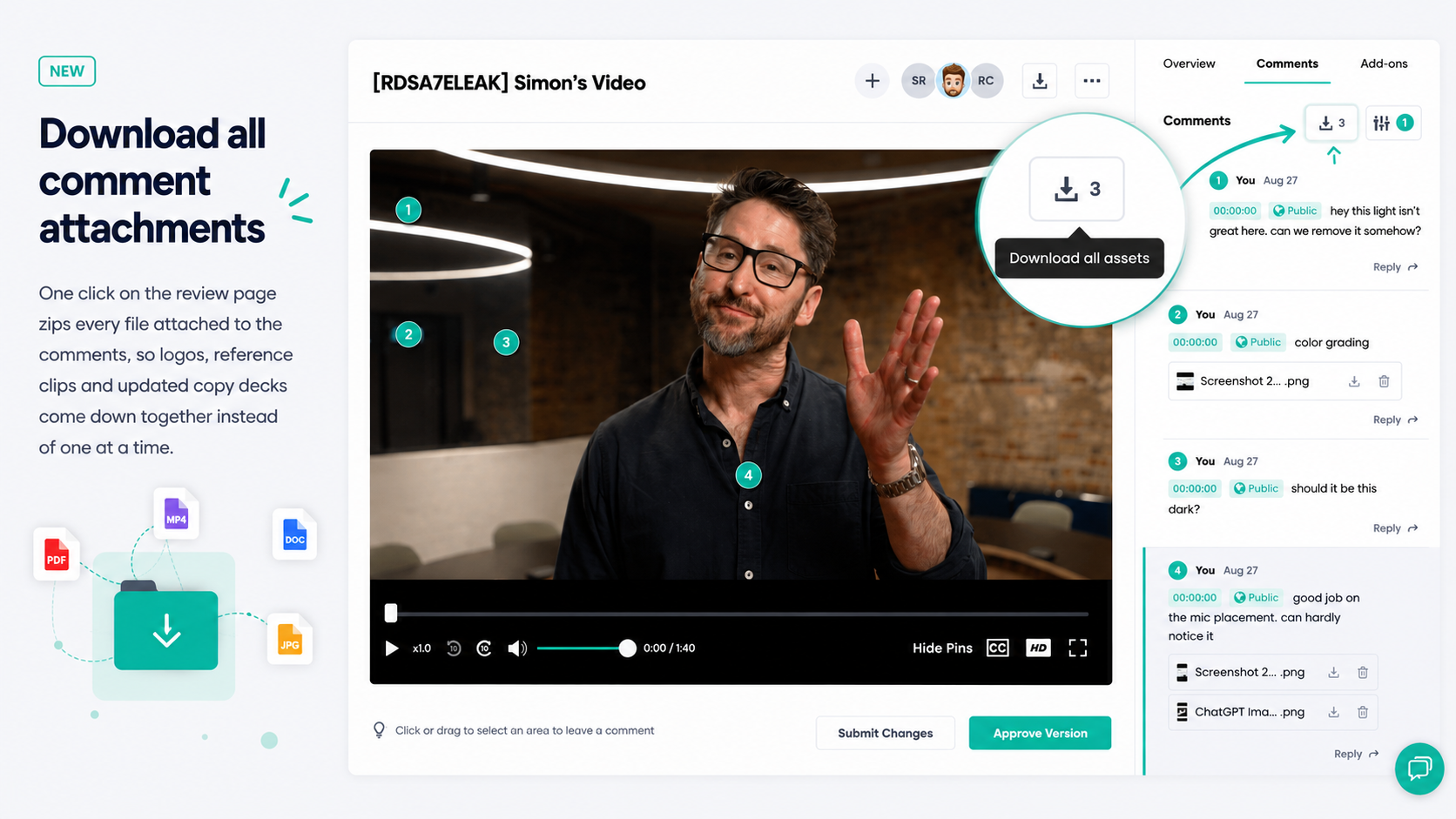
Each attachment keeps its own download icon, so grabbing a single file still works when that is all you need.
If review is the slow part of your process, our guide on speeding up corporate video review workflows covers the habits that go with these tools. There is also a list of warning signs that a review process is about to break.
Free Consultation
Want a hand with your next video?
Talk to a Shootsta producer about your goals, timeline, and budget. There is no pitch, just advice you can use.
Finding your way around faster
Find your Pro projects faster
The Pro menu now splits into Active and Completed views, so work in progress is not buried under a year of finished projects.
Folders inside folders
The media library now supports nested folders, so you can sort footage the way you sort files anywhere else: by campaign, then by shoot, then by cut.
Our guide to media folders in Shootsta walks through setting them up. For a bigger library, read how to keep video assets organized at scale.
PDFs show real previews
PDF files now display their first page instead of a generic icon. You can spot the right script or brand deck without opening three of them first.
Uploads and downloads you can trust
Big files upload reliably
Large 4K camera files that used to fail near the end of the upload now go through. They move faster too.
You will always know if an upload fails
Upload status is shown clearly at every step. You cannot submit while a file is still uploading or has failed, so no submission quietly goes out with footage missing.
Downloads use your clip names
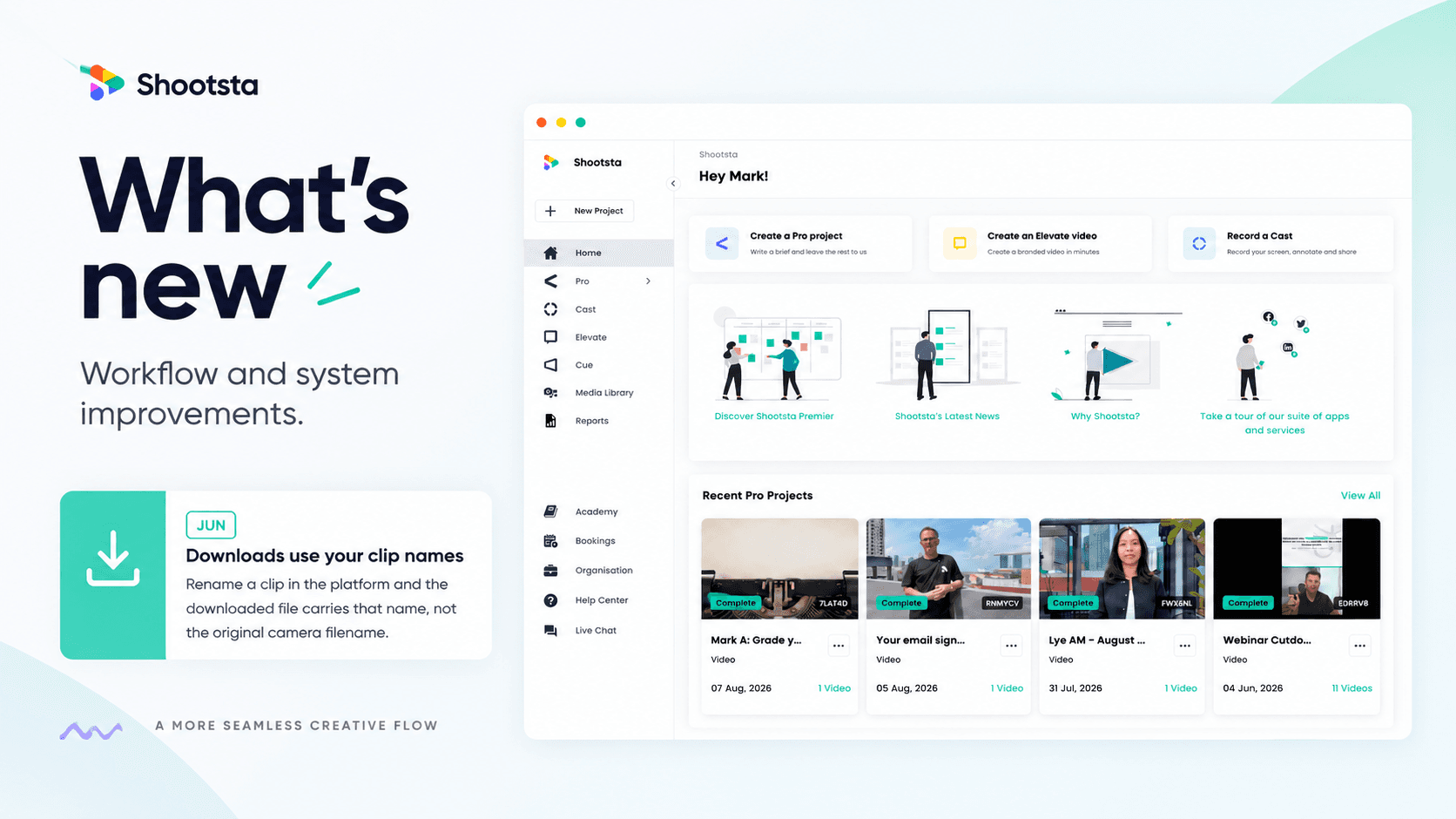
Rename a clip in the platform and the downloaded file carries that name, so you get "ceo-intro-final.mp4" instead of "C0037.MP4".
That matters most when you are handing files to another team, because nobody then has to guess which take is which.
Download options you can trust
The download menu only offers the resolutions that exist for that video. You cannot pick 4K on a 1080p file any more, so you stop hitting dead ends.
Captions and transcripts
Clearer captions plus text transcripts
Caption generation now shows live progress, with a retry if it fails, so you can see it working instead of guessing.
You can also download a plain text transcript alongside the subtitle file, and that text feeds blog posts, email summaries and accessibility records without a separate transcription step.
If you are new to captions in the platform, start with our step by step guide to adding captions in Shootsta, then read how to caption business videos at scale for the quality checks that matter at volume.
What ties these updates together
Nobody picks a video platform because of PDF thumbnails, but the gap between a team shipping 10 videos a month and a team shipping 40 is rarely creative talent. It is the friction between having an idea and publishing the finished file.
Every item on this list removes a small piece of that friction. None of them are dramatic on their own, but they compound across a month of projects.
All of these Shootsta updates are already live for every workspace, with nothing to turn on and no upgrade needed.
To see the whole workflow from brief to approved cut, take a look at how the Shootsta platform works.
Frequently asked questions
Do I need to turn any of these updates on?
No. Every one of the Shootsta updates listed here is live for all workspaces, and there is no upgrade, add-on or setting to switch on.
Does reopening a project cost a credit?
Reopening no longer uses a credit at the point you reopen. A reopened project also carries your original brief, so the editor keeps the context you already gave them.
How do I pin a comment to a spot in the frame?
On the review page, drag a box over the part of the frame you want to talk about, then type your comment. The note stays attached to that region and that moment in the video.
Can I download a text transcript as well as subtitles?
Yes. Once captions are generated you can download a plain text transcript alongside the subtitle file, so you can use the subtitle file on the video and the transcript for anything text based.
What happens if a file fails to upload?
The upload status shows the failure, and the project cannot be submitted until it is sorted. You retry the file first, so nothing reaches the editor with footage missing.
Take this article with you
Read the latest at shootsta.com/blog/shootsta-updates-september-2026
You might also like
What we heard at the CMO Assembly in Nashville
Two days at the Millennium Alliance CMO Assembly in Nashville with marketing leaders from some of the world's biggest brands. Three things came up in almost every conversation: volume is up while budget is flat, brand drifts as volume rises, and speed decides whether a video still matters. Here is what we heard and what we shared.
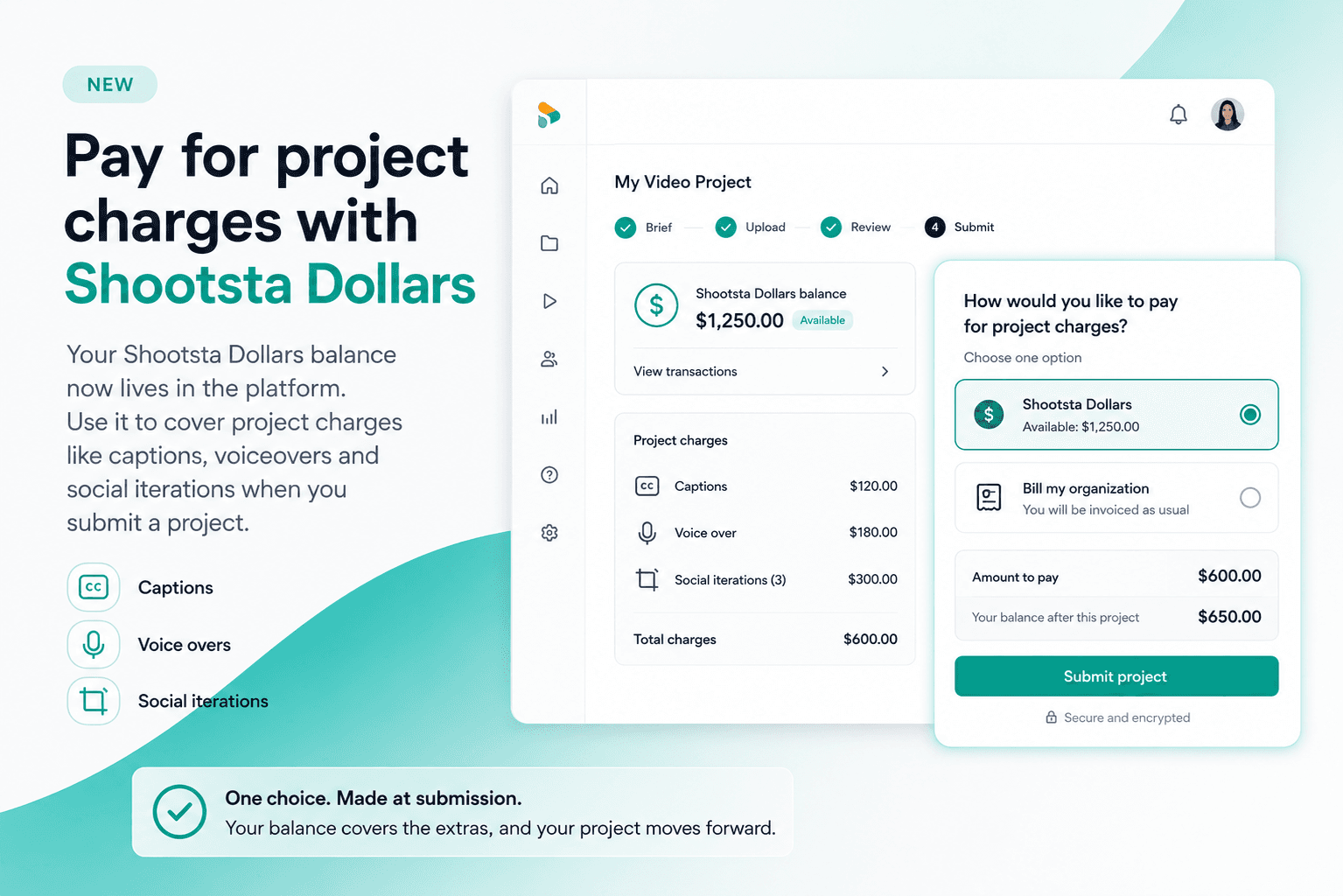
Pay for project charges with Shootsta Dollars
Your Shootsta Dollars balance now lives in the platform. Use it to cover project charges like captions, voiceovers and social iterations when you submit a project.
Shootsta Impact Video Awards 2026: How to Enter
Shootsta Impact Video Awards 2026: How to Enter
Entries are open for the Shootsta Impact Video Awards 2026. Here is what the awards recognise, who can enter, the 14 categories, how the panel judges, and how to nominate your team before July 31.
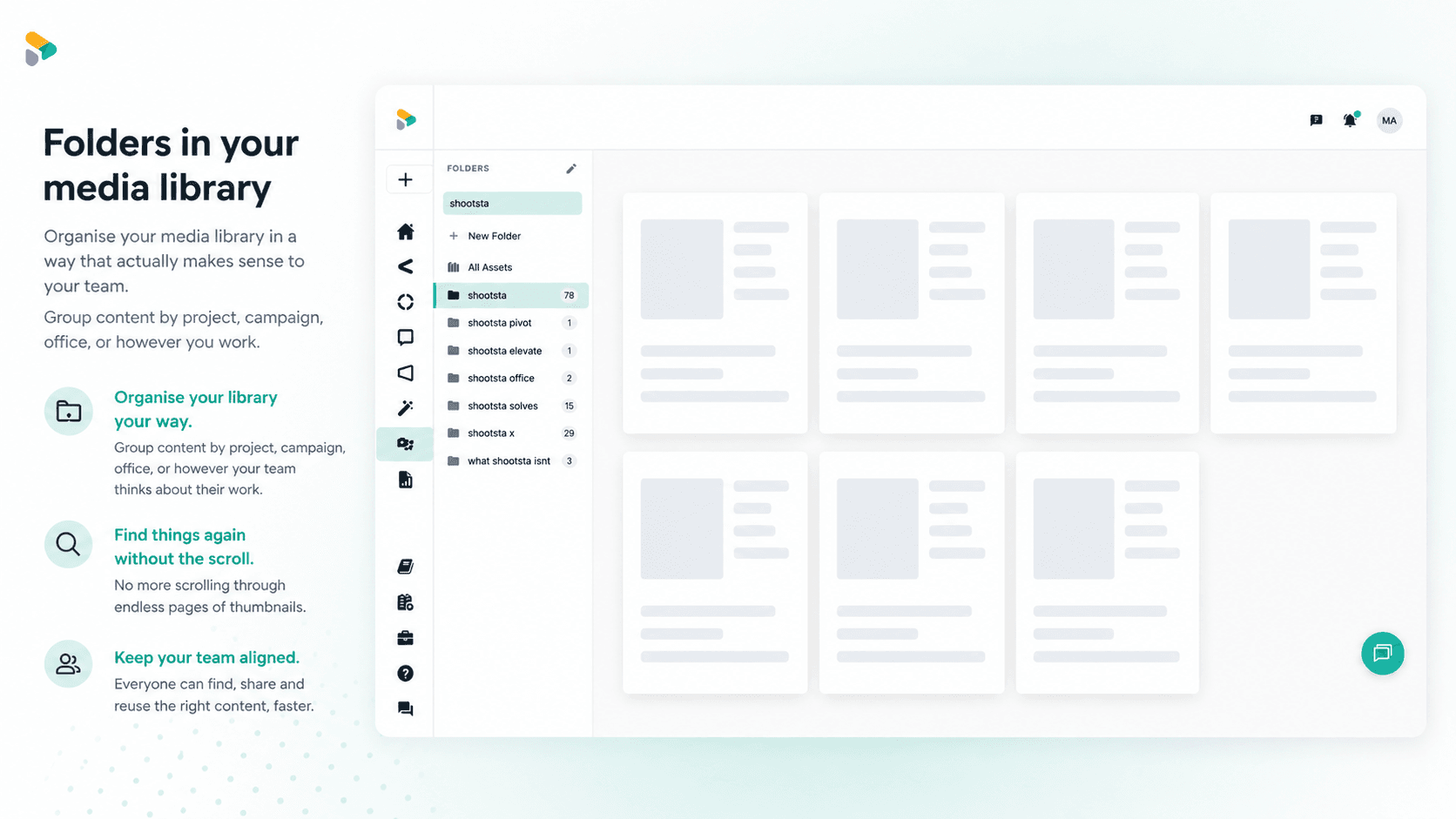
How to Use Media Folders in Shootsta
Organize your video assets into folders directly inside the Shootsta media library. Here is how to create folders, move assets, and keep your library clean as it grows.
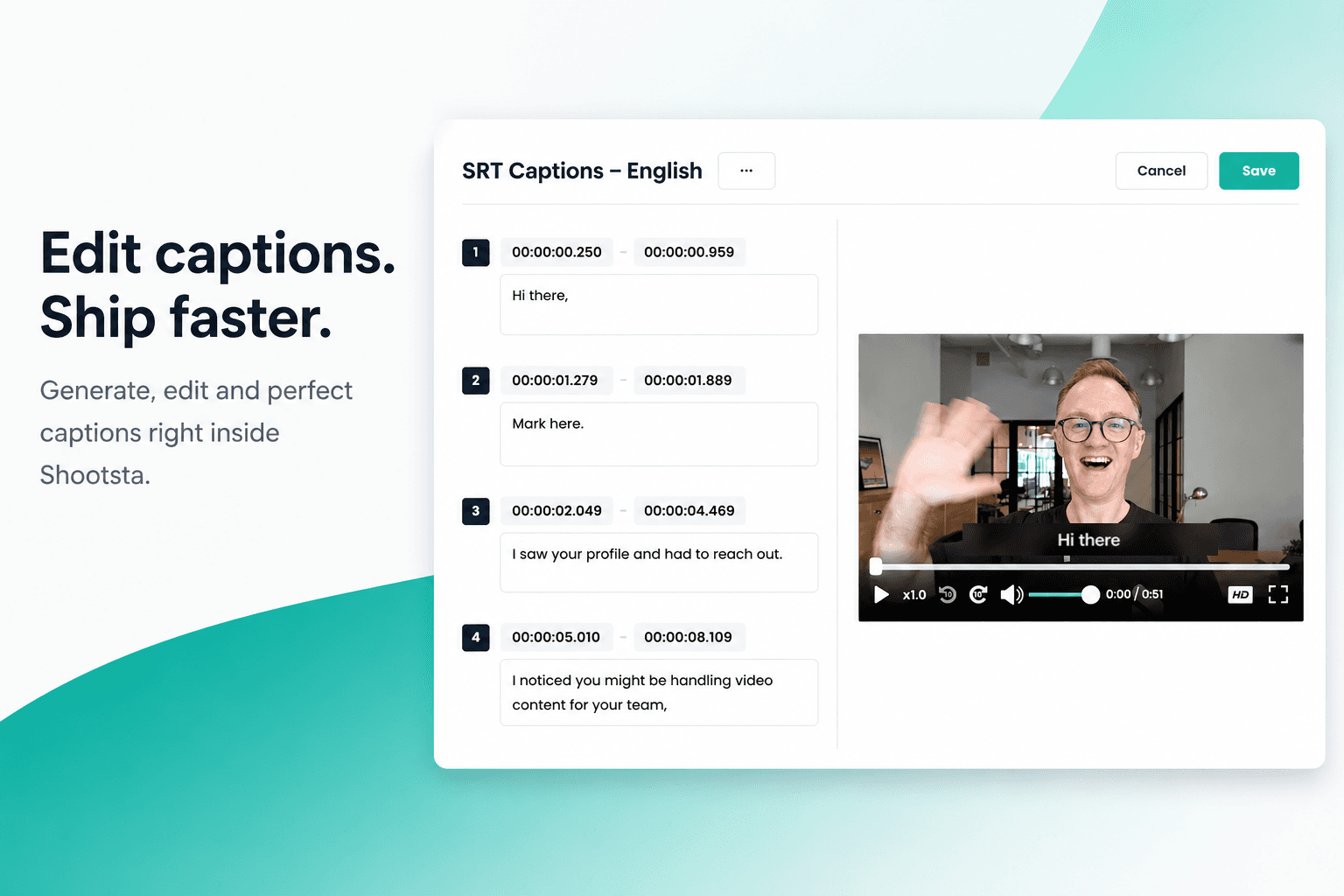
How to Add Captions in Shootsta
Generate and edit captions directly inside the Shootsta platform. No request forms, no back and forth, no waiting on turnaround. Here is how it works.
