
shootsta.
Typography in Business Video
By Shootsta · Published February 18, 2026 · Updated October 2026
Type does more than label a speaker. Used well, it becomes part of the video itself. Here is how to use typography in business video without making it look like a slide deck.
Why typography matters in video
Most business videos use type only as a label. A name appears, a title appears, a logo appears at the end. That works, but it leaves a lot on the table. When you use it well, type sets the pace and tells the viewer where to look. It can be the difference between a video that feels alive and one that feels like a slide deck with motion.
The four jobs of type in a business video
Identification
This is the basic job: lower thirds for speakers, location titles and brand bugs. The trap is letting these dominate the screen. A name and title shouldn't take more than one third of the lower frame, and shouldn't sit there longer than 4 seconds.
Reinforcement
Reinforcement means you pull a key phrase out of the spoken track and put it on screen. A spoken line is gone in a few seconds, while the same words on screen stay long enough for the viewer to take them in. For social cuts where viewers watch with sound off, reinforcement type is the only message they get.
Pacing
Kinetic type, where words pop on screen in time with the audio, drives energy. Used sparingly it adds life to a flat segment. Overused it becomes exhausting. The rule of thumb: kinetic type for the hook and the call to action, plain captions for the body.
Captioning
Captions are the one job you can't skip. A large share of social video plays in a feed with the sound off, so a video without captions loses everyone who scrolls past in silence. Our captioning guide covers how to do this at scale.
Typography rules that hold up
One typeface, two weights
The fastest way to make a business video look amateur is to use three different fonts. Pick one brand typeface. Use one weight for headlines, one for body. That's enough variety for any video.
Big enough to read on a phone
A lot of business video gets watched on a phone screen. If the type isn't readable at that size, it isn't doing its job. The simplest test: shrink the preview to phone size and squint. If you have to lean in, the type is too small.
High contrast against the background
Light type on dark video, dark type on light video. If the background changes throughout the clip, add a subtle drop shadow or a translucent background plate rather than hoping the text stays readable.
Animation in service of the message
Every animation should help the viewer read or feel something. Animations that just exist to look cool waste seconds and dilute the actual content. The team should be able to defend every motion choice.
Common typography mistakes
- Type that's smaller than the talking head. If the on-screen text needs to be read, it should be at least as visible as the speaker's face.
- All-caps body copy. Reads slower than mixed case. Use sparingly for emphasis only.
- Centered paragraph text. Centered headlines are fine. Centered body text is hard to read because the eye loses the line return.
- Fancy fonts. Script fonts and display fonts kill readability on small screens. Save them for thumbnails and intros.
How typography ties to brand
Most brand systems already define a primary and secondary typeface. Use them. The video team going rogue with new fonts is the fastest way to dilute brand consistency across channels. For teams managing video at scale across regions, our brand consistency guide covers the workflow that keeps type on-brand even when many editors are involved.
FAQs about video typography
What font sizes work for video captions?
For 1080p video, captions in the 36 to 48 px range work for both phone and desktop viewing. For 4K, scale up proportionally.
Do I need motion graphics for every video?
No. A clean lower third and accurate captions cover most business video. Reserve motion graphics for hooks, key statistics, and the call to action.
Should every video have on-screen captions?
For social and silent-autoplay environments (LinkedIn feed, in-email video, in-app video), yes. For viewers who deliberately pressed play with sound on, captions are optional but appreciated. Captioning everything is the simpler default, because you never have to guess how a clip will be played.
Take this article with you
Read the latest at shootsta.com/blog/typography-in-business-video
You might also like
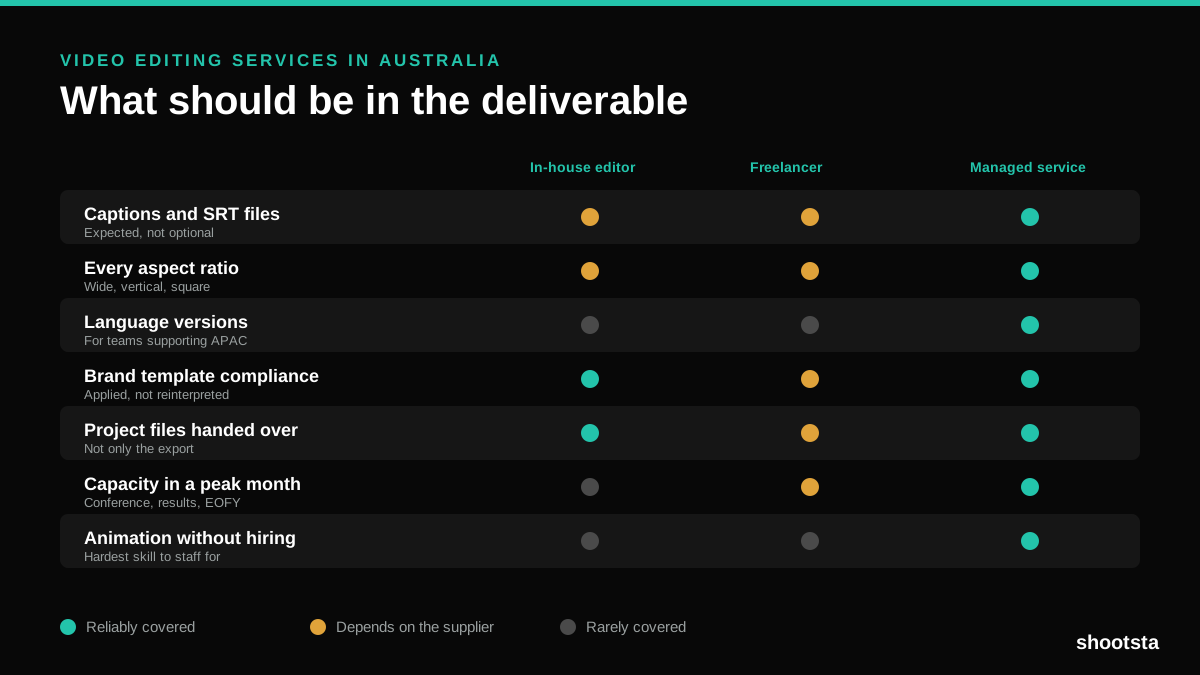
Video Editing Services in Australia
Australian teams are spread across time zones and offices, so the editing queue matters more than the editing. Here is what to expect on cost and turnaround.
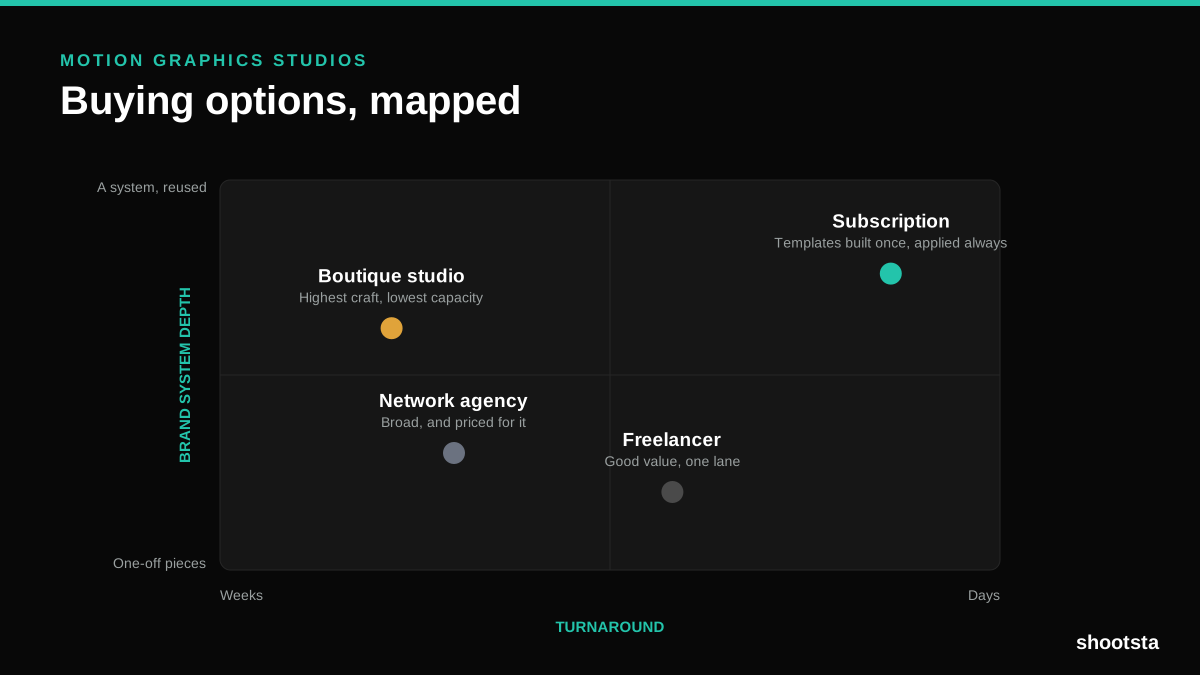
How to Choose Between Motion Graphics Studios
Every motion graphics studio has a good reel. The reel is the one thing that will not tell you how the fifth project goes. These ten criteria will.
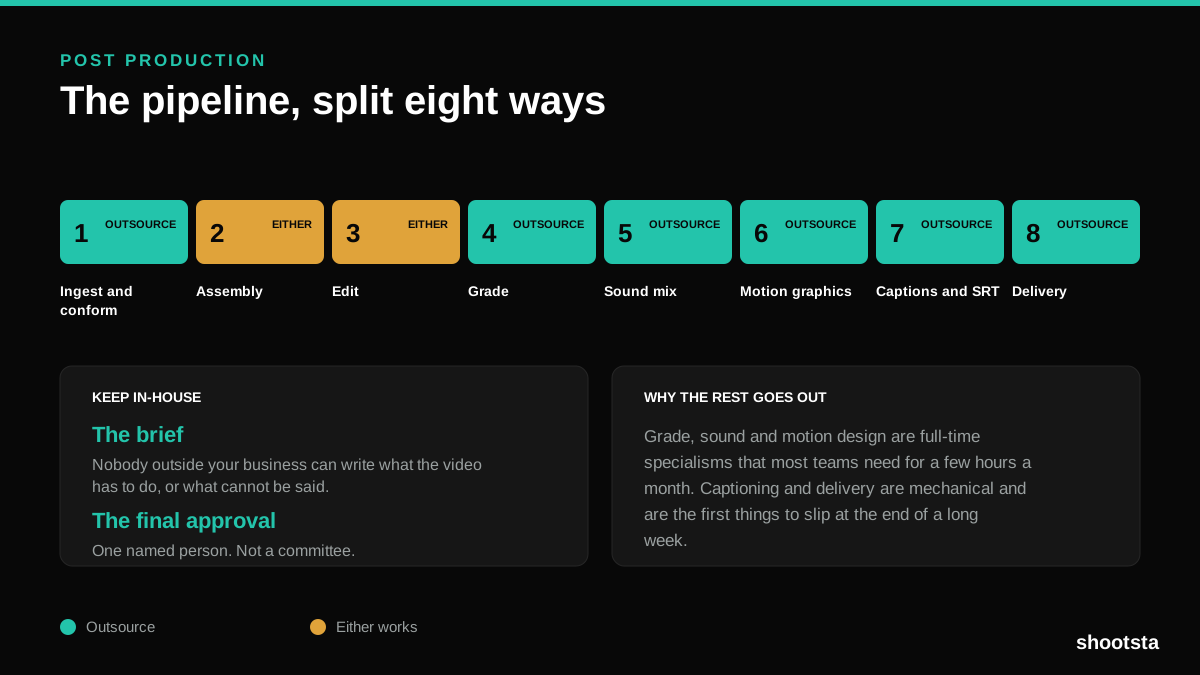
Post Production Agency or In-House Team?
Post production is eight stages, not one. Some of them need context only your team has. The rest are mechanical and are the first things worth handing over.
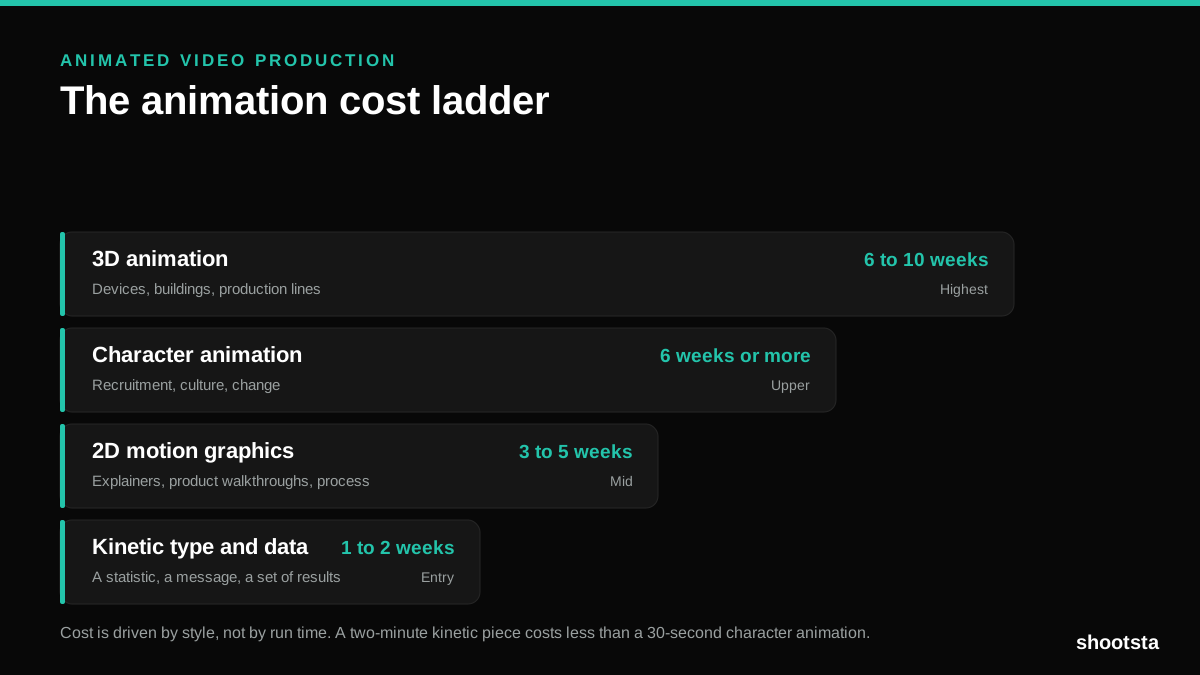
Animated Video Production Cost in the US
Animated video production costs move with style, not with length. Kinetic type, 2D motion, character and 3D sit on four rungs of a ladder. Here is what separates them.
How to Commission Medical Training Animation
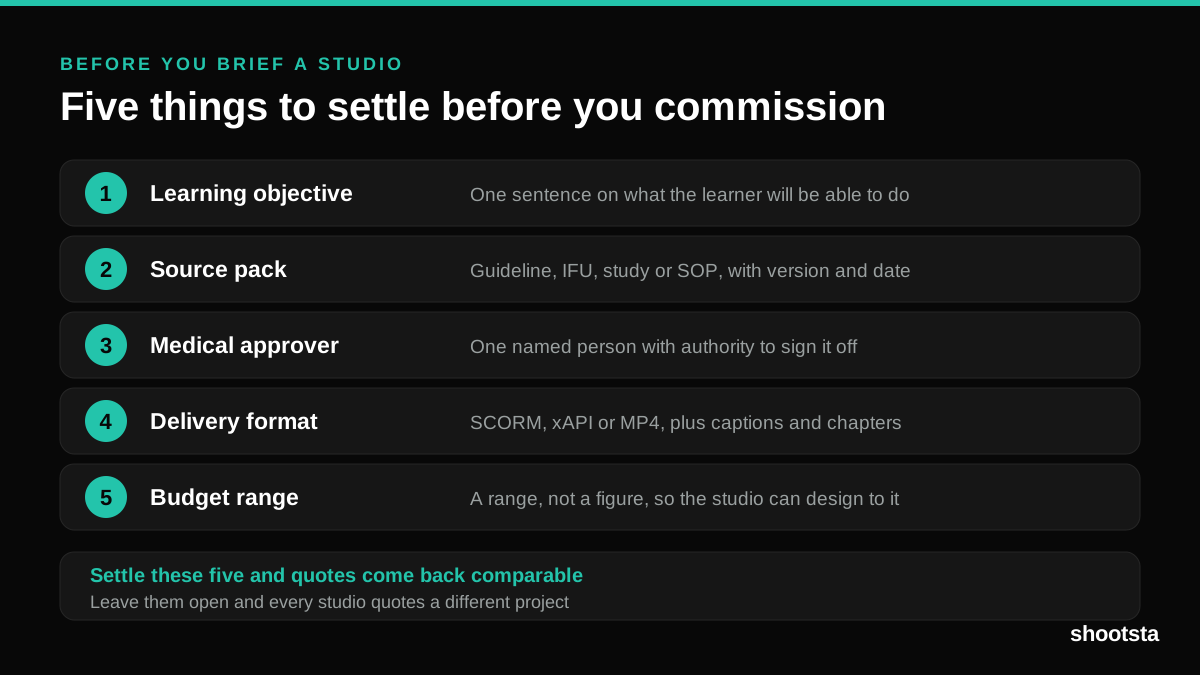
Commissioning a medical training animation is mostly decisions you make before anyone animates a frame. The brief fields that matter, what to ask a studio, how much expert time to budget, and the contract terms that stop a rebuild in two years.
How to Write an Animation Brief
How to Write an Animation Brief
Most animation briefs cause delays because they over-specify the visual style and under-specify the outcome. Here are the nine fields an animation production team needs to quote accurately and start without rework.