
How to Fix AI Generated Video, Shot by Shot
shootsta.
How to Fix AI Generated Video, Shot by Shot
By Shootsta · Published October 13, 2026 · Updated November 2026
A practical guide to fixing AI-generated video: diagnose each shot, decide whether to cut, cover, regenerate or replace it, then repair text, voice and lip-sync, grade, caption and disclose where required.
You generated a video with Sora, Veo, Runway, Kling, HeyGen or Synthesia, and most of it works. A few shots give it away, such as a garbled sign, a hand with too many fingers or a voice that stresses the wrong word. This guide explains how to fix AI generated video one problem at a time, so the finished cut reads as your brand rather than your tool.
AI tools are a reasonable starting point, and the finish decides whether people trust the result. DoubleVerify's 2026 global study found that 42% of consumers say low-quality or "uncanny" AI ads would hurt their opinion of a brand. Far fewer react badly when the AI work looks polished. Below is the order to work in, with an honest split of what you can do yourself.
Can you fix AI generated video, or should you start again?
In most cases you can fix AI generated video without starting again. The script, structure and many shots are usually fine. The problems sit in predictable places: on-screen text, hands, lip-sync and the voice. Each of those has a standard repair.
Starting again makes sense when the core idea is wrong or nearly every shot has a visible flaw. If the message works and the problems sit in a handful of moments, repairing is faster than regenerating everything. Our explainer on what AI slop video is lists the usual tells.
Step 1: How do you diagnose what is wrong with an AI video?
Before you fix AI-generated video, watch it once on the screen your audience will use and note your first reaction. Then go back slowly and log every problem against a timecode. Check in the order a viewer notices problems.
- Text, logos, screens and packaging that render as nonsense
- Faces, hands and teeth that warp or change shape between frames
- Lip-sync that drifts away from the voice
- Flat delivery, odd emphasis and mispronounced names in the voiceover
- Flicker, morphing backgrounds and lighting that jumps between shots
- Template pacing and generic music
- Off-brand fonts, palette or product details
Step 2: Should you cut, cover, regenerate or replace each shot?
To fix AI generated video efficiently, give every flagged shot one of four decisions. Deciding shot by shot keeps the job small, because you only rework what is broken.
| Decision | When to use it | Example |
|---|---|---|
| Cut | The shot adds little and the video works without it. | An establishing shot with a warped building. |
| Cover | The shot is mostly good and one area is wrong. | An office scene where a screen shows garbled text, covered by a graphic. |
| Regenerate | The shot matters and a new prompt is likely to work. | A product close-up where the logo melted, retried without the logo. |
| Replace | Several attempts have failed, or the shot must be accurate. | Your own product, office or staff, swapped for filmed or stock footage. |
Replacement is the safest choice for anything a customer could check, because generators guess at what your product and people look like.
How do you fix garbled text and logos in AI video?
When you fix AI-generated video that contains text, stop asking the generator to render words or logos at all. Generate the shot clean, then add the text and logo in the edit as graphics, using your brand fonts and master logo file. The result is sharp, spelled correctly and easy to change for another market.
Where a shot already contains garbled text, you can reframe to push it out of view, blur it, or track a graphic over it. Tracking is usually the first repair where an editor saves time, because the graphic must follow the camera without sliding.
How do you fix the voiceover and audio?
Audio is often the quickest win when you fix AI-generated video, because viewers forgive rough pictures sooner than an irritating voice. Listen for mispronounced product names, emphasis on the wrong words and a pace that never changes. Many voice tools accept phonetic spellings, which solves the smaller problems.
If the voice still sounds synthetic, re-voice the video with a staff member or a professional artist. Then clean and mix the audio: remove hiss and clicks, sit the music well under the voice, and set loudness to the platform standard.
How do you fix lip-sync in AI-generated video?
To fix AI-generated video with drifting lip-sync, re-render the avatar from clean, final audio first, since drift often comes from a script edited after the first render. When a re-render does not solve it, cut away to b-roll, screen recordings or graphics over the worst moments. Wider framing also makes small mouth errors harder to see.
Shootsta Snap founding intake
Get your AI video cleaned up by an editor
Shootsta editors fix the hands, text, lip-sync and voice that give AI video away. The first intake has 20 founding places, and each one comes with a free audit of one video.
How do you make AI shots look like they belong together?
Grading is easy to skip when you fix AI generated video, yet it does much of the work. Generated clips often differ in contrast, white balance and saturation, even from the same prompt. Pick a reference frame from your approved brand videos and match every shot to it, so AI shots sit comfortably beside filmed footage. A grade calms mild flicker, but heavy morphing goes back to the Step 2 decision.
Why should you add captions to AI video?
Captions let people follow the video with the sound off, and they make it accessible. They also give you a second proofread of the script, because errors stand out when every word is on screen. Set captions in your brand font and check the timing line by line.
What does a brand pass include?
The brand pass is the last step when you fix AI-generated video before review. It confirms that the logo, fonts, palette, lower thirds, end card and music match your guidelines. It also checks the intro and outro against the rest of your library. Our post on how creative directors keep brand consistency covers the rules worth writing down.
Do you need to disclose that a video was made with AI?
Sometimes you do, and the rules depend on where the video runs. YouTube asks creators to disclose realistic content that has been meaningfully altered or synthetically generated, and it labels those videos. In the EU, Article 50 of the AI Act has required deployers to disclose AI-generated or manipulated video that could pass as real since 2 August 2026.
When you fix AI generated video, the duty to disclose stays in place. Check the current policy for each platform and market. Involve your legal team where the video features a real person, a product claim or a regulated topic.
Which fixes can you do yourself, and which need an editor?
Some ways to fix AI generated video take minutes in any editing app. Others take skill and time. Upwork reports that job posts for AI remediation work rose 70% year on year. This table gives an honest split.
| Fix | Do it yourself | Needs an editor |
|---|---|---|
| Cutting weak shots | Yes, in any editing app | When the cuts break the story and it needs restructuring |
| Text and logos | Clean graphics over a still frame | Tracking graphics onto moving screens or signs |
| Voiceover | Phonetic spellings and emphasis changes | A re-voice, a full audio clean-up and a final mix |
| Lip-sync | Re-rendering the avatar from final audio | Cutaways, re-timing and rebuilds |
| Grading | A basic preset | Matching AI shots to filmed footage and your brand look |
| Captions | Auto-captions, checked line by line | Branded caption styles and language versions |
| Aspect ratios | A simple crop for one platform | Reframing each shot for vertical, square and widescreen |
Choosing to fix AI-generated video yourself is reasonable for one short clip. At several videos a week the hours add up, and an editor working from your brand rules is faster. For a wider view of where AI belongs in production, read how AI fits inside enterprise video workflows.
How can Shootsta Snap fix AI generated video for you?
Shootsta Snap is our AI video clean-up service. You send a video made with a tool like Sora, Veo, Runway, Kling, HeyGen or Synthesia, and a human editor fixes what makes it read as AI and returns a publishable, on-brand cut. Our editors in Sydney, London, Singapore and San Diego have worked on more than 70,000 videos.
Founding prices start at US$99 per video for a Clean-up of up to 60 seconds. A Rebuild starts at US$249 for up to three minutes and includes re-voice, shot replacement, a re-cut and extra aspect ratios. The first intake opens in January 2027 and is capped at 20 founding customers. Each founding customer gets a free audit of one video, a price held for 12 months and first place in the queue.
Registering interest costs nothing and takes no payment, and every quote is confirmed before work starts. See how Shootsta Snap fixes AI video, or compare options in our guide to what AI video clean-up costs.
Frequently asked questions
How do I fix AI generated video quickly?
Start by covering or removing garbled text and logos, replacing or cleaning up the voiceover, and cutting any shot with warped hands or faces. Then grade the clips to one look and add captions.
Can you fix AI-generated video without regenerating it?
Yes, in most cases. Cutting, covering with graphics, re-voicing and grading solve the common problems without a new render. Regenerate only the shots that matter and cannot be cut or covered.
How do you fix hands and faces in AI video?
Short glitches can be trimmed or hidden with a cutaway. Longer ones need a new render with a tighter prompt, or filmed footage. Retouching a warped hand frame by frame rarely pays off.
We have an in-house video team. Why would we send AI video out to be fixed?
Your team can do this work, and for important videos they probably should. The pressure comes from volume, because AI lets marketing, HR and comms teams generate more video than an in-house team can finish. A clean-up partner takes the overflow, and our post on when to hire an editor to fix AI video covers that decision.
How long does fixing AI video take?
It depends on the length and how many shots need work. Shootsta works to a first cut in about 48 hours, and anything faster is quoted separately. You can register for the AI video clean-up intake to have your first video audited free.
Sources
- YouTube Help, Disclosing use of altered or synthetic content.
- EU AI Act, a practical guide to the Article 50 transparency rules.
- DoubleVerify, Global study: poor-quality AI content puts brand trust at risk (29 July 2026), the source for the 42% figure.
- Upwork, AI-generated work is creating more work for humans, the source for the 70% rise in AI remediation job posts.
- Shootsta's turnaround, video count and editor locations come from our own production records.
Take this article with you
Read the latest at shootsta.com/blog/how-to-fix-ai-generated-video
You might also like
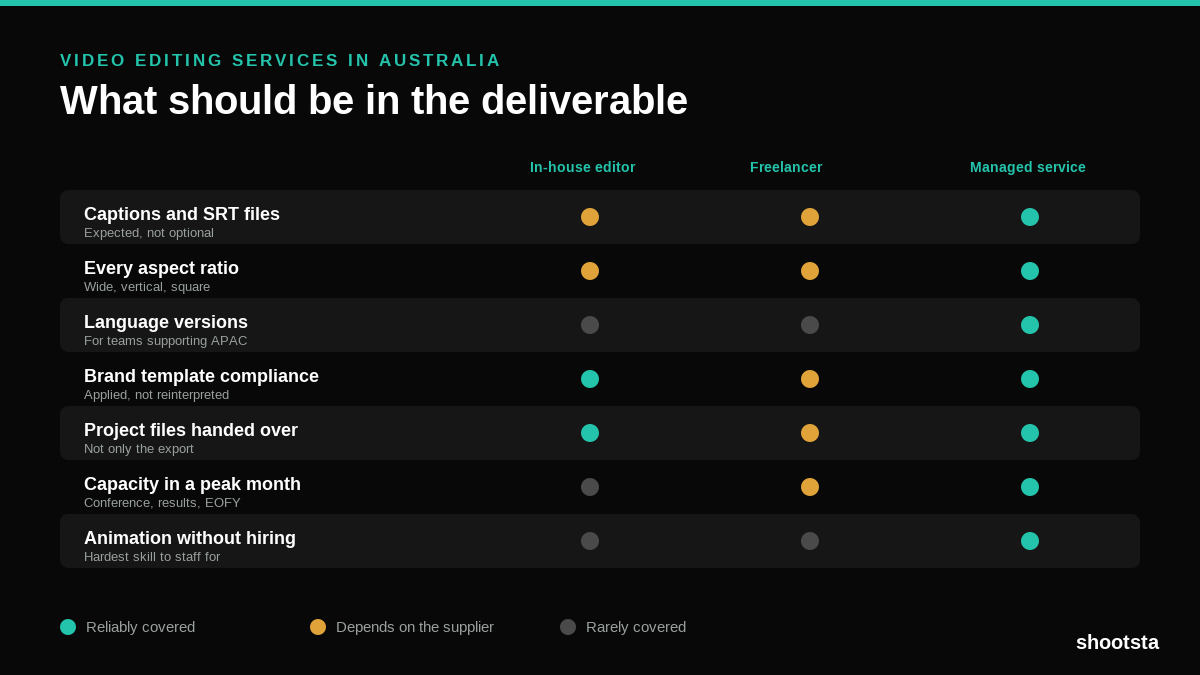
Video Editing Services in Australia
Australian teams are spread across time zones and offices, so the editing queue matters more than the editing. Here is what to expect on cost and turnaround.
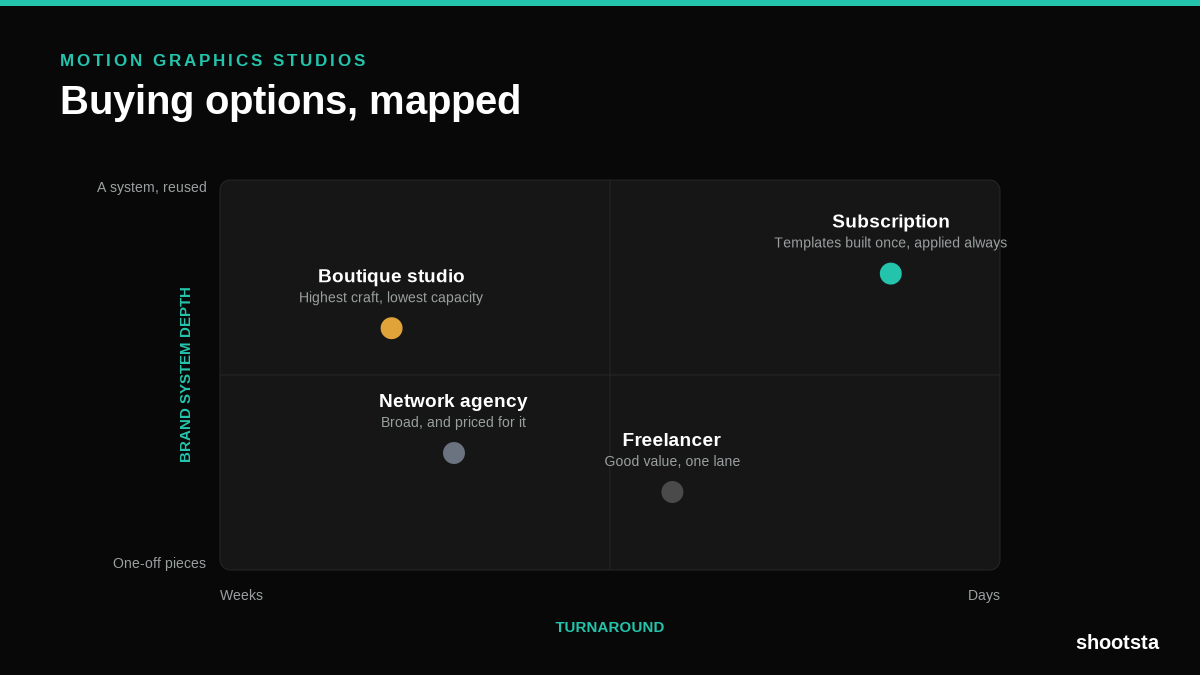
How to Choose Between Motion Graphics Studios
Every motion graphics studio has a good reel. The reel is the one thing that will not tell you how the fifth project goes. These ten criteria will.
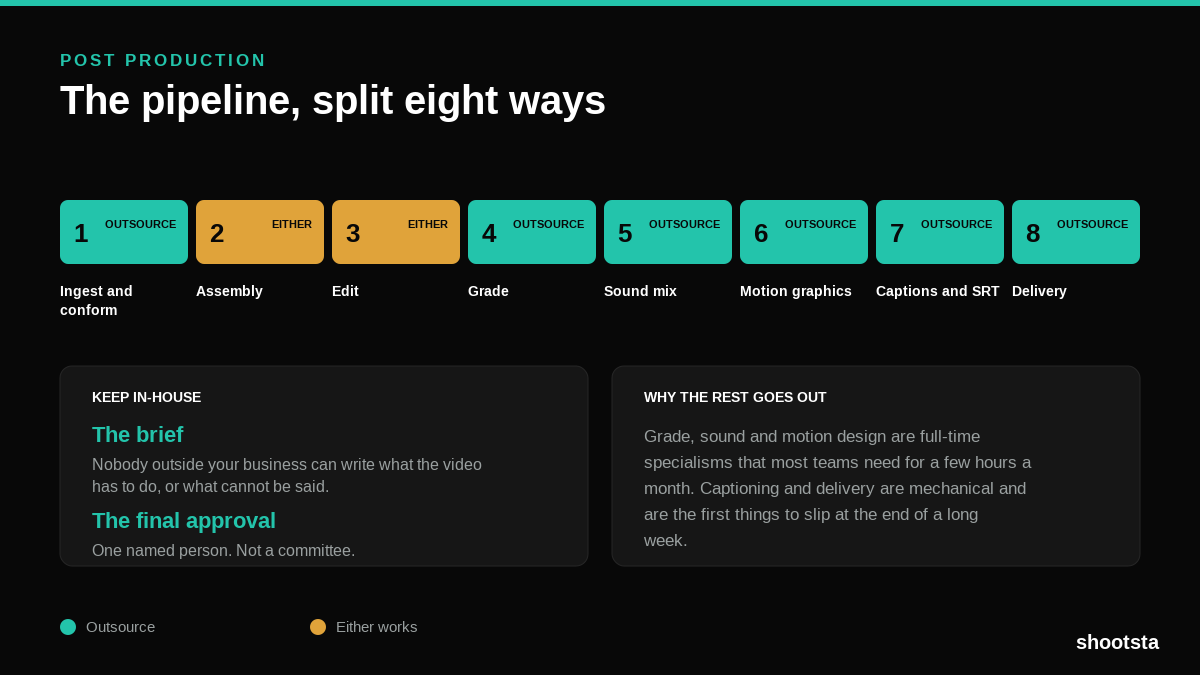
Post Production Agency or In-House Team?
Post production is eight stages, not one. Some of them need context only your team has. The rest are mechanical and are the first things worth handing over.
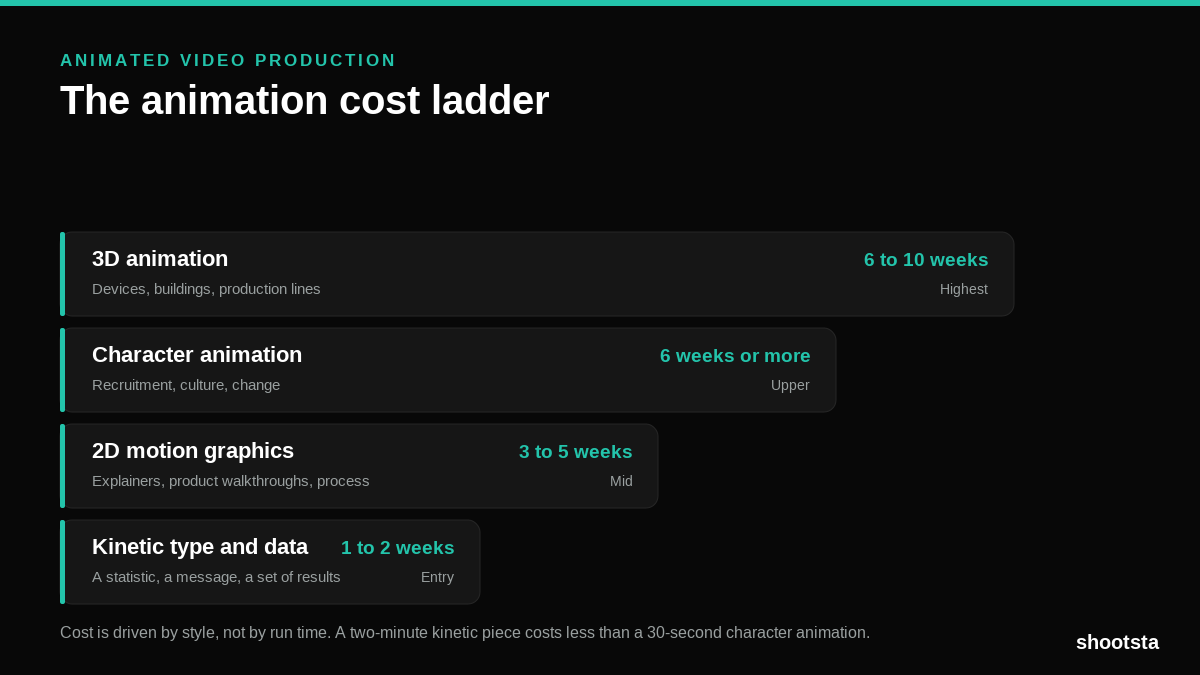
Animated Video Production Cost in the US
Animated video production costs move with style, not with length. Kinetic type, 2D motion, character and 3D sit on four rungs of a ladder. Here is what separates them.
How to Commission Medical Training Animation
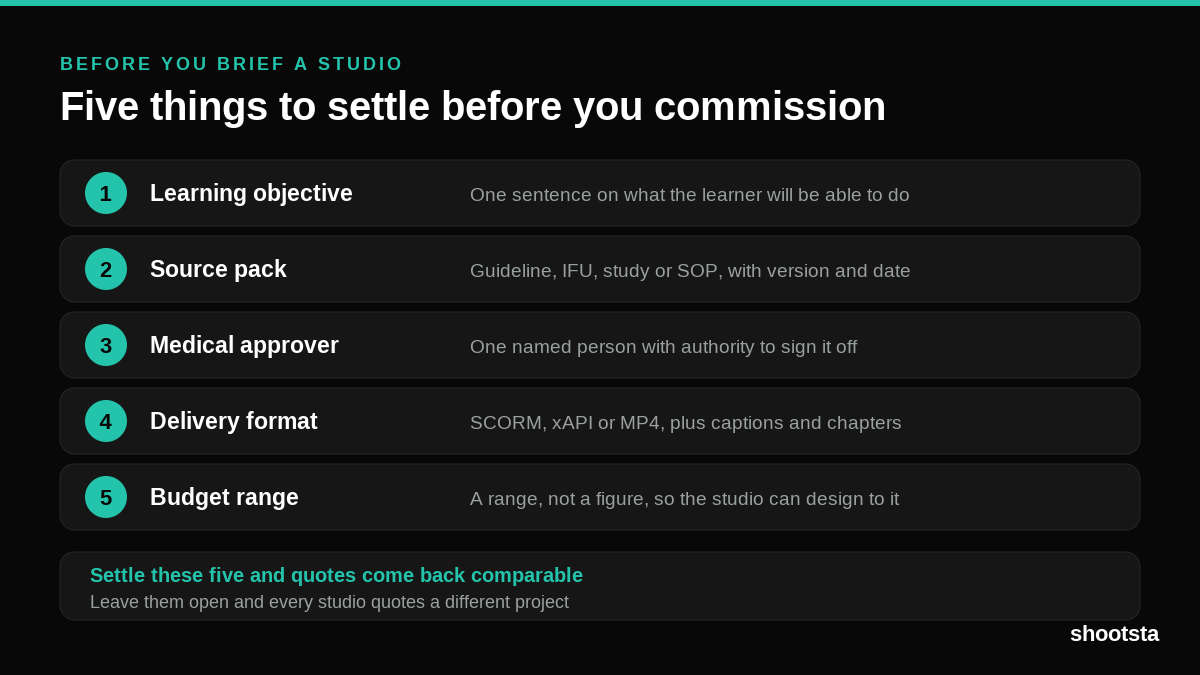
Commissioning a medical training animation is mostly decisions you make before anyone animates a frame. The brief fields that matter, what to ask a studio, how much expert time to budget, and the contract terms that stop a rebuild in two years.
How to Write an Animation Brief
How to Write an Animation Brief
Most animation briefs cause delays because they over-specify the visual style and under-specify the outcome. Here are the nine fields an animation production team needs to quote accurately and start without rework.