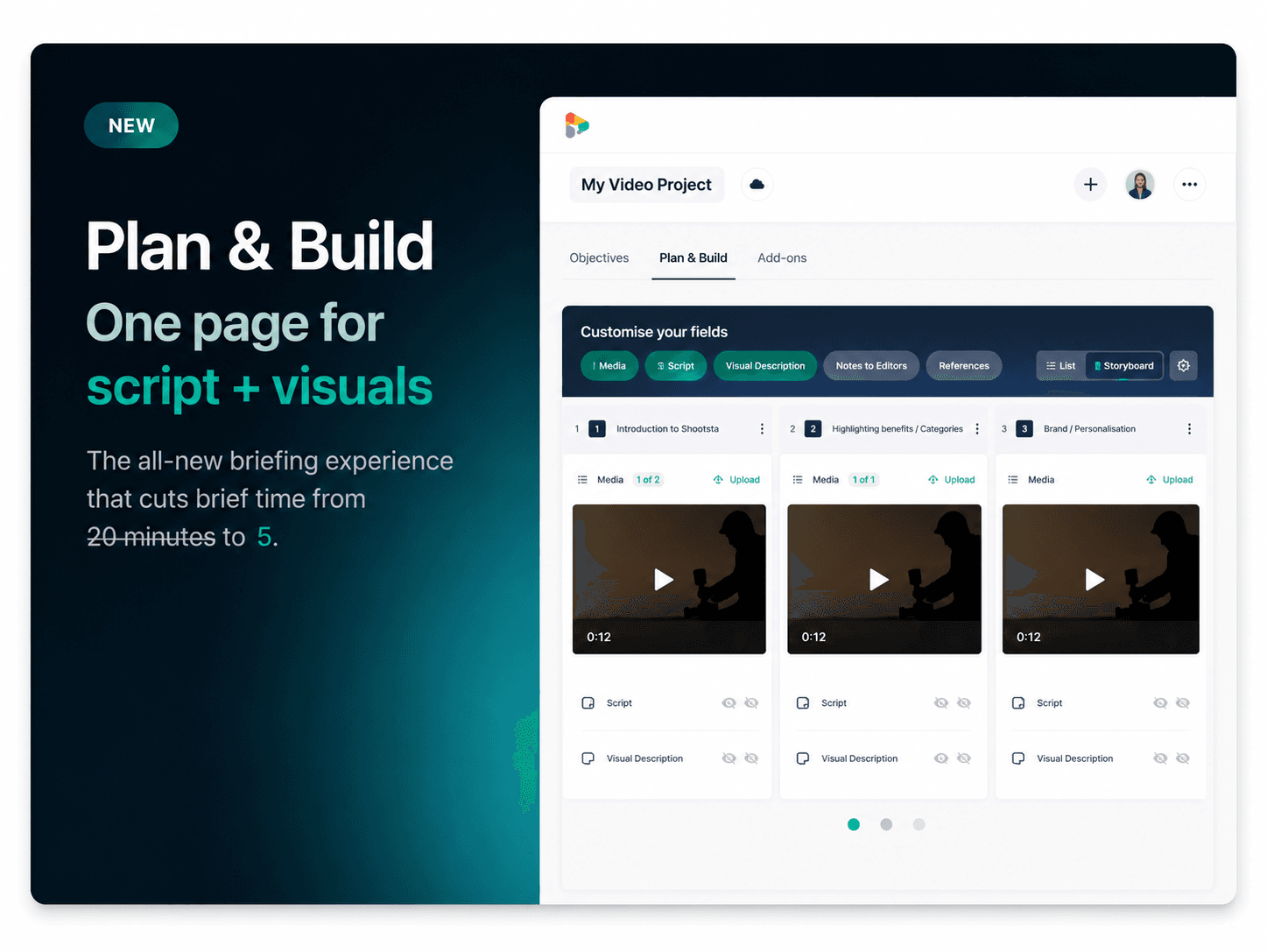
We've rebuilt the video briefing workflow in the Shootsta app. Plan and Build cuts brief time from 20 minutes to 5, with one page for script and visuals.
If you've used the Shootsta app to brief a video project, you know the older workflow had a few too many stops along the way. You wrote a script in one place. You shaped the storyboard in another. You moved between Visual Builder and Script Builder, sometimes guessing which one you needed for the project in front of you.
From May 7, 2026, that changes for everyone. We are rolling out Plan and Build, a single page in the workflow that combines script and visual planning into one place, with the level of complexity you actually need for the job at hand.
The headline benefit: average brief time drops from around 20 minutes to about 5.
What is Plan and Build?
Plan and Build is the rebuilt briefing step in Shootsta workflow v5.1. It replaces the separate Script Builder and Visual Builder pages with one combined page that adapts to how complex your project is. Lightweight projects stay lightweight. Multi-scene productions still get the full storyboard treatment. The difference is that you are no longer toggling between two interfaces to do one job.
Two ways to start a project
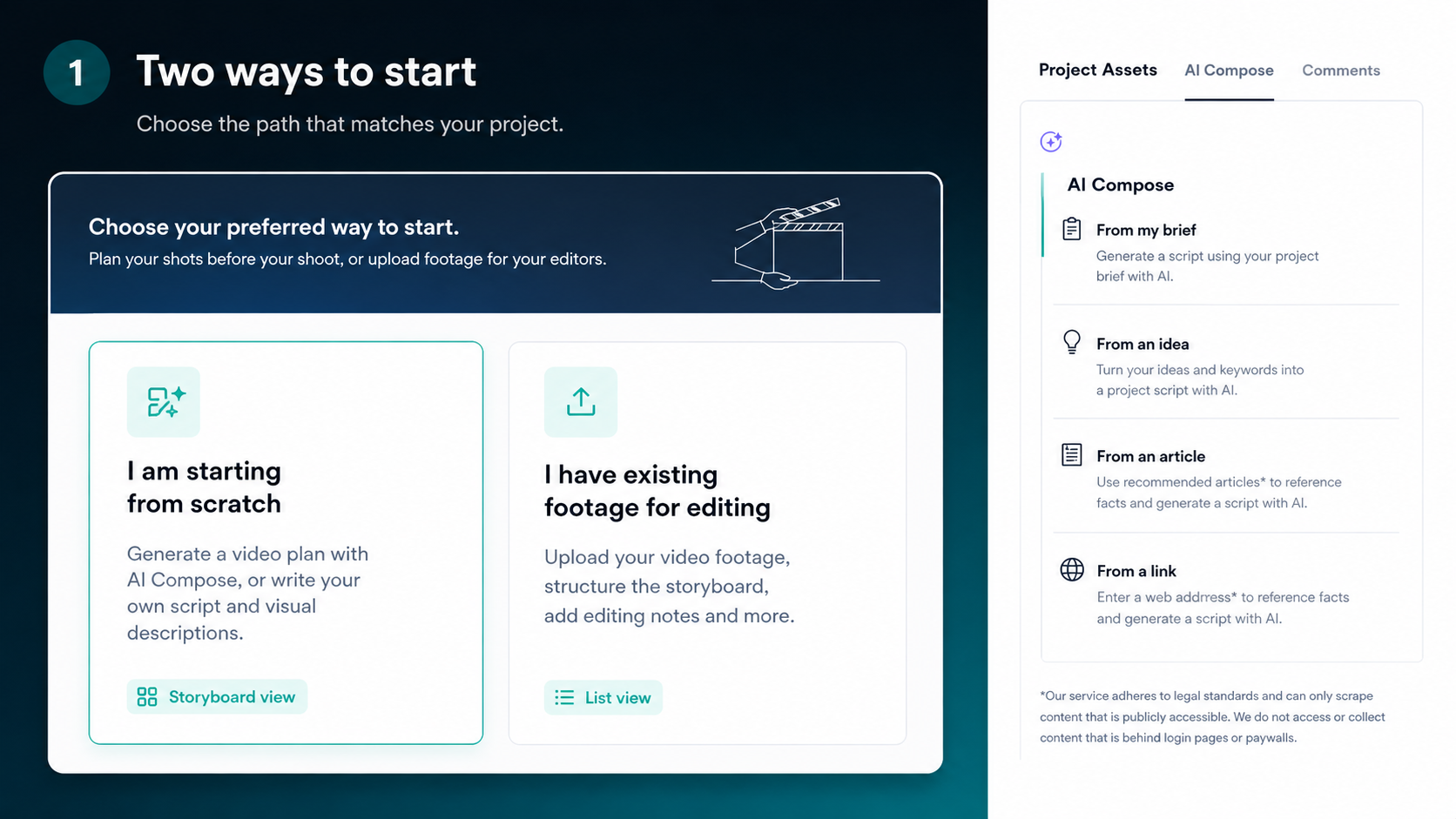
When you open Plan and Build, the first prompt is simple: how do you want to start? You pick one of two paths and the workspace preloads to match.
Starting from scratch
Pick "I am starting from scratch" if you need pre-production. Plan and Build opens in storyboard mode with a fresh canvas. You can write the script, generate one with AI Compose, sketch out scenes, drag in references, and add notes for your editor. This is the right path for new shoots, animated explainers, and any project where the visuals do not exist yet.
Working with existing footage
Pick "I have existing footage for editing" if you are handing video assets to your editor. Plan and Build opens in list view so you can upload footage, structure the scenes, and write notes for the editor against each clip. This is the post-production path: you have already shot or sourced the video, and you need it cut and finished.
Both modes share the same data, so you can switch between them at any point in the project without losing your work.
Customise the fields you actually use
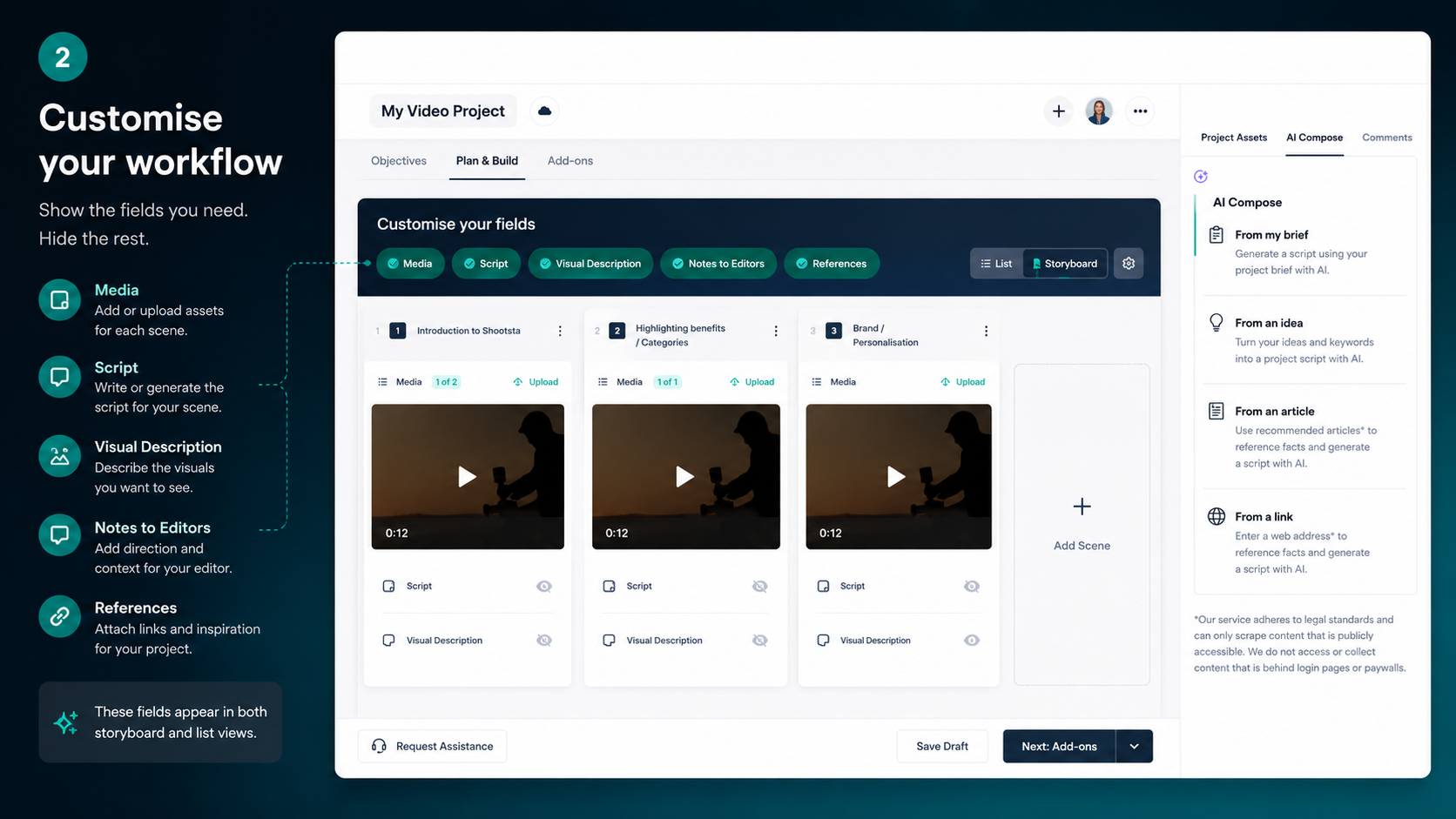
Some projects need a full script. Others need rough notes. Plan and Build lets you toggle the fields that appear on each scene: Media, Script, Visual Description, Notes to Editors, and References. Turn on what your project needs, hide what it does not. The same field set applies to both list and storyboard views.
List view or storyboard view, your call
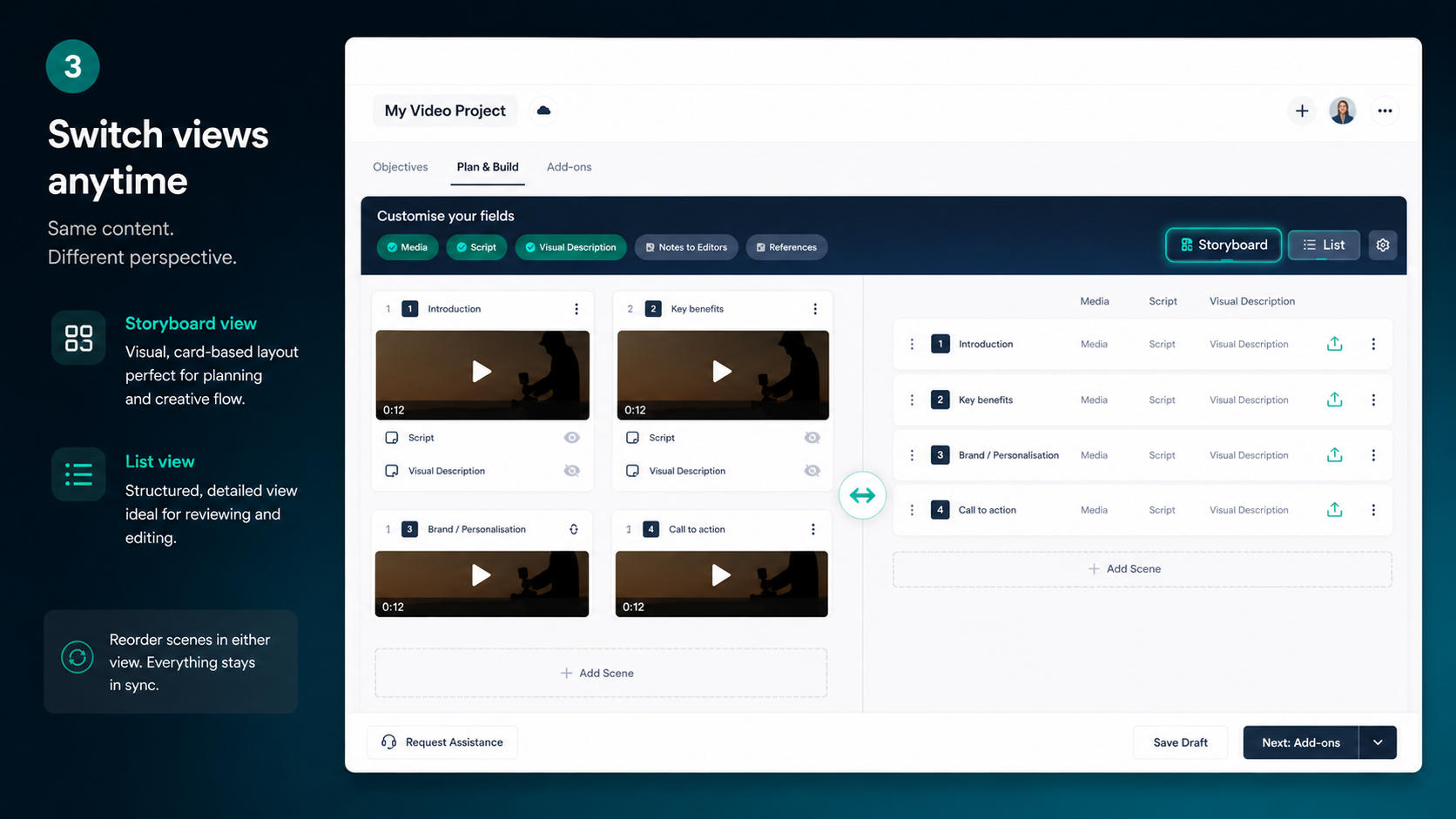
The two views show the same scenes, the same fields, and the same content. They are just different ways to look at it.
Storyboard view is visual. Each scene sits in its own card with media previews, scripts, and visual descriptions arranged for browsing. It is the right view when you are shaping the look and feel of the project.
List view is dense. Scenes stack vertically with all their assets, scripts, and notes inline. It is the right view when you are working through edit notes, ordering footage, or scanning a long project quickly.
You can reorder scenes in either view, and assets and comments stay grouped within the scene they belong to.
AI Compose still has your back
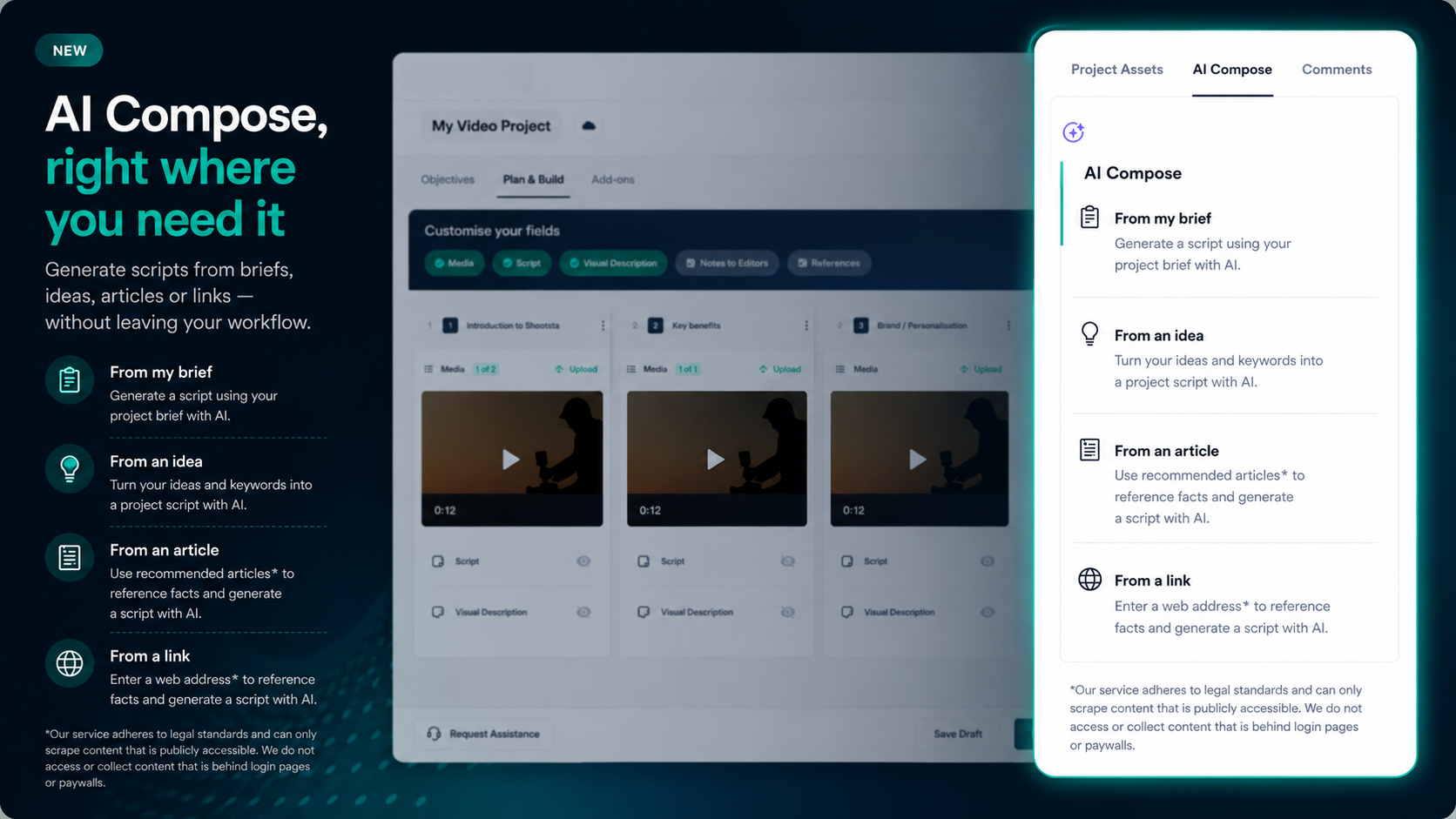
The AI assistance you already use is still there. From the Plan and Build page, you can compose a script three ways: from a project brief, from an idea or set of keywords, or from a reference article. The AI Compose panel sits on the right of the page, ready when you need it and out of the way when you do not.
What this means for your team
If your team briefs a lot of video, the time savings add up. Marketing teams running 10 to 30 briefs a month should see a few hours back per person every month. Internal comms teams with single-person video functions get more of those minutes back for the work that actually moves the needle, which is the content itself.
For sales teams using Shootsta for sales video, fewer steps means more reps actually finishing their briefs. For internal comms running internal communications video at scale, the simplified flow makes it easier to delegate briefs across a wider group of contributors.
Plan and Build FAQs
When does Plan and Build go live?
Plan and Build rolls out to all Shootsta accounts on May 7, 2026. There is no action required from you. The next time you start or open a project after that date, you will see the new workflow.
Do my existing draft projects still work?
Yes. Drafts created in the older Script Builder and Visual Builder will open in Plan and Build automatically. Your scripts, scenes, assets, and notes carry across without any change required.
Can I switch between list view and storyboard view mid-project?
Yes. The two views share the same underlying data, so you can switch at any time. Reordering scenes in list view also reorders them in storyboard view, and vice versa. Assets and comments stay attached to the scene they belong to.
Does AI Compose still work the same way?
Yes. AI Compose now lives in the right-hand panel of Plan and Build. The three options remain the same: generate a script from your project brief, from an idea or set of keywords, or from a reference article you provide. The output drops straight into the script field of the scene you are working on.
Can I customise which fields appear on each scene?
Yes. The Customise your fields toolbar at the top of Plan and Build lets you toggle five field types per scene: Media, Script, Visual Description, Notes to Editors, and References. Hide the fields you do not need, keep the ones you do. The configuration applies across all scenes in the project.
Why is Shootsta releasing this update?
The older Script Builder and Visual Builder ran as separate pages because the original product split scripting from visual planning. In practice, most customers do those two things together. Plan and Build merges them into one workflow that fits the way teams actually brief video, and removes the friction of switching pages mid-project.
Try Plan and Build
If you are already a Shootsta customer, you will see Plan and Build in your account from May 7, 2026. If you are new to Shootsta and want to see how a faster briefing workflow fits into a full enterprise video program, get in touch or tour the platform.